
Guides / Using Lumit / Layers
Updated
Shapes
A Shape layer holds vector shape groups with fills, strokes, and path operations.
Draw a shape
Section titled “Draw a shape”- Deselect all layers.
- Pick a shape or pen tool.
- Draw in the Viewer.
With a shape layer selected the tools add a shape to it. Hold Alt to draw a
mask on it instead. With any other layer selected the tools draw a mask.
When using a shape tool while drawing, if you want to maintain the shape’s proportions,
hold Shift while creating the shape.
Open paths
Section titled “Open paths”The Pen closes a path when you click its first point again. Enter, Esc, a click
outside the Viewer or another tool leaves it open. An open path’s stroke stops at its ends,
and its fill closes with a straight line. Layer ▸ Mask and shape path ▸ Closed opens or
closes the picked path.
With the Pen, click either end of the selected layer’s open path to carry it on, and its other end to close it.
Deleting points never deletes the path until its last point goes.
Rectangles, ellipses, polygons and stars
Section titled “Rectangles, ellipses, polygons and stars”A shape drawn with the Rectangle, Rounded rectangle, Ellipse, Polygon or Star tool keeps the numbers that make it. In place of a Path row it has:
| Shape | Rows |
|---|---|
| Rectangle | Width, Height, Position x, Position y, Roundness |
| Ellipse | Width, Height, Position x, Position y |
| Polygon | Points, Position x, Position y, Rotation, Outer radius, Outer roundness |
| Star | Points, Position x, Position y, Rotation, Inner radius, Outer radius, Inner roundness, Outer roundness |
Every row is animatable. Roundness is in pixels; the roundness of a polygon or star is a percentage, and 100 makes a polygon a circle.
Convert to path on the shape’s menu turns it into a path, the shape it shows at the playhead. Dragging one of its points in the Viewer does the same.
Fills and strokes
Section titled “Fills and strokes”Each shape group carries its own fill and stroke, set from the toolbar when the shape is drawn. Both are editable afterwards from the Timeline, on the group’s own Fill, Stroke and Stroke width rows. Add and Remove on the shape’s menu give it a fill or a stroke, or take one away.
Gradient fills
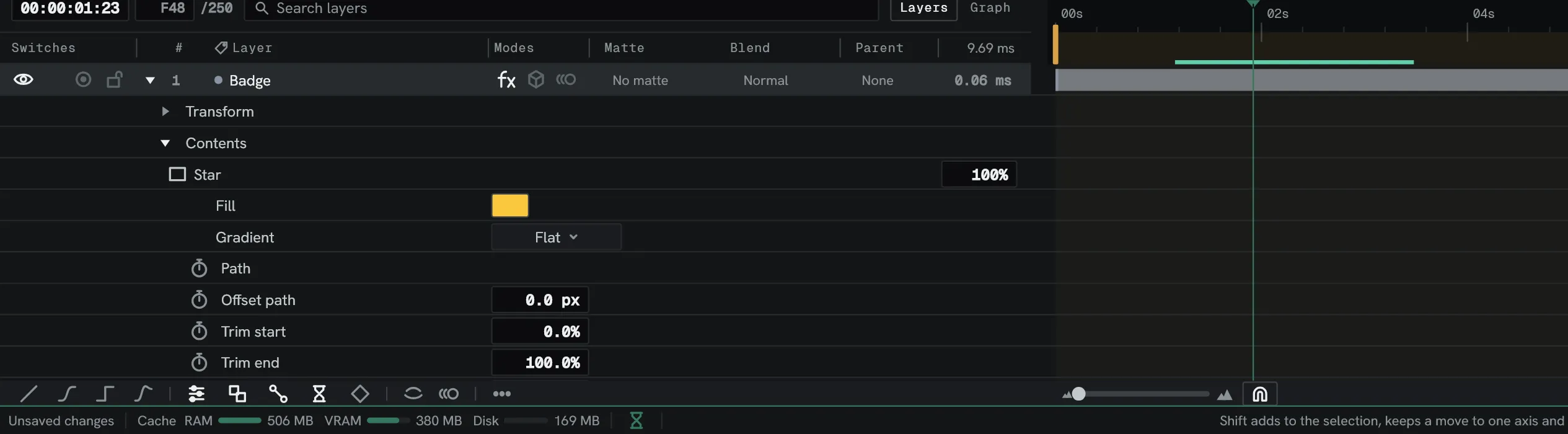
Section titled “Gradient fills”A shape group’s first rows are Fill, the colour inside its path, and Gradient, which is Flat, Linear or Radial. Choose a ramp and its rows appear: the Gradient colour it ends at, Gradient stops, an opacity for each end, and the two points that aim it.
Linear ramps along the line between the points; radial ramps outwards from the first, with the second on the outer edge.
Gradient start opacity is how opaque the Fill end is and Gradient end opacity how opaque the Gradient colour end is, as a percentage. The ramp fades evenly between them, and an end at 0 is clear.
The points and the opacities are animatable; the colours are not.
Gradient stops
Section titled “Gradient stops”Click the ramp on the Gradient stops row to open its editor. The handles at either end are the Fill and the Gradient colour.
- Click the ramp to add a stop between them.
- Drag a stop to move it. Drag it away from the ramp, or press Remove, to take it off.
- Colour, Opacity and Position set the selected stop.
Each stop also has two rows in the Timeline, Stop 1 position and Stop 1 opacity for the first, and both are animatable. Editing a keyed stop in the editor sets a keyframe at the playhead.
Two stops at the same position make a hard edge. A gradient holds up to 16 stops between its ends.
Combine two shapes
Section titled “Combine two shapes”Every shape group after the first in the list carries a Combine row, saying how it joins the one above it: Apart, Union, Subtract, Intersect or Exclude. Apart is the default, and draws it on its own.
A run of shapes all set to something other than Apart folds top to bottom.
The run wears the first item’s paint and modifiers. The ones after it lend their path and nothing else, so their own fill, stroke and dash rows are left off the panel.
A shape fills the same way after a combine as before it.
Animate the shape itself
Section titled “Animate the shape itself”A shape group’s Path row carries the shape, and its stopwatch animates it. Key one path, move the playhead, drag a vertex, and the shape morphs between the two.
Vertices are paired by order, not by feature; where one path has fewer points, it is subdivided to match the denser one first. Whether a path is open or closed is held across the morph.
Modifiers
Section titled “Modifiers”A shape layer’s contents is an ordered list: shapes, modifiers and groups. A modifier acts on every shape above it in its group, in list order. Two modifiers of one kind stack: a repeater under a repeater repeats the copies.
Right-click a row in the Timeline for Add, which lists Repeater, Trim paths, Offset paths, Twist, Deform, Smooth, Fill, Stroke, Stroke taper and Group. A modifier is added under the row and acts on it; on a group it is added inside the group. A modifier’s rows sit under its own twirl, and every row is animatable. Move up and Move down reorder an entry; Delete modifier takes one off.
The stroke taper is a setting of the shape itself, offered under Add and Remove.
Groups
Section titled “Groups”Add ▸ Group puts the row inside a new group. A modifier inside a group acts on the shapes inside it and on nothing outside. Ungroup opens a group out in place.
Layer ▸ Create ▸ Split into shape layers makes one shape layer per top-level group, each where it sat, and switches the original off.
Smooth
Section titled “Smooth”Smooth rounds off the whole path, jags and corners alike. Its one row, also Smooth, is how far along the path each point is averaged with its neighbours, in pixels. 0 leaves the path alone.
The path never bulges past its own points; a large smooth shrinks it a little instead. An open path’s ends stay where they are.
Twist turns the shape about an axis and flattens it, as if seen side-on. One end of the shape stays put and the other turns by the angle, so a circle becomes a figure eight at 180°.
- Twist angle: how far the far end turns, in degrees. 0 leaves the shape alone, and a new twist starts at 10°.
- Twist rotation: how far the twisted shape is spun about the axis, in degrees. A full turn loops.
- Twist axis: the direction of the axis, in degrees.
- Twist centre x and y: the point the axis passes through. It starts in the middle of the shape.
Deform
Section titled “Deform”Deform moves the outline with a smooth noise field. The Deform row picks Displace, which pushes the outline in and out along itself, or Scale, which scales each point’s distance from the middle of the shape.
- Deform amount: how far, in pixels for Displace and as a percentage for Scale.
- Deform scale: the size of the noise’s features, in pixels.
- Deform evolution: moves through the noise, in degrees. Key it to animate the outline.
- Deform seed: picks a different noise.
- Deform detail: how often the noise is read along the path, per feature. Lower values bend the outline more broadly.
Stroke taper
Section titled “Stroke taper”Stroke taper narrows a shape’s outline towards its ends, like a brush stroke. It is offered only for a shape with a stroke.
- Taper scope: Each path tapers every path of the shape on its own; Whole shape runs one taper along all of them in order.
- Start taper and End taper: how much of the width is gone at each end, as a percentage. 100 comes to a point.
- Start length and End length: how far along the path each narrowing runs, as a percentage of its length. When the two add up to more than 100 they are shrunk together.
- Taper ease: how rounded the narrowing is. 0 is a straight ramp.
The taper follows the trimmed path, and each dash takes the width the outline has where it falls.
Trim paths
Section titled “Trim paths”A Trim paths entry carries Trim start, Trim end and Trim offset. Start and end are a percentage of the path’s own length; offset slides that piece along the path in degrees, and 360 is one full lap of a closed shape.
The fill is trimmed with the outline, and an end below the start draws nothing.
Dashed outlines
Section titled “Dashed outlines”A shape with a stroke carries Dash, Gap and Dash offset rows, in pixels. Dash is the length of each mark, Gap the space after it, and the pair repeats along the path. Both start at zero — a solid outline. Key the offset and the dashes move along the path.
Offset paths
Section titled “Offset paths”An Offset paths entry carries one Amount, in pixels. Positive pushes the outline outwards; negative pulls it in. Corners come out round.
Pull the outline in by more than the shape is thick somewhere and it can cross itself, leaving a small loop.
The repeater
Section titled “The repeater”A Repeater entry draws the shapes above it Copies times, each copy one more step along than the last. Nine rows describe the step: Repeater position x and y, Repeater rotation, Repeater scale, the Repeater anchor the turn and the scale happen about, and Start opacity and End opacity, which the copies fade evenly between.
Copy offset says which copy the original art is, so a negative number puts copies behind it. A copy is a scaled drawing, not a scaled path: halve the scale and the outline and the dashes halve with it.
The layer’s box grows to hold the copies, and the layer’s position stays pinned to that box’s corner. One repeater stops at 100 copies, and stacked repeaters at 1,000 between them.
Expand copies
Section titled “Expand copies”Right-click a Repeater for Expand copies. Into this layer replaces the repeater with its copies as shapes of their own, named after the original. Into layers keeps the first copy here and makes one shape layer per further copy, below this one. Expand all copies on a shape layer’s row does the same for every repeater it has. Both read keyed values at the playhead, and each is one undo step.