
Reference / Effects / Transition
Updated
Radial wipe
Radial wipe is a Transition effect.
What it does
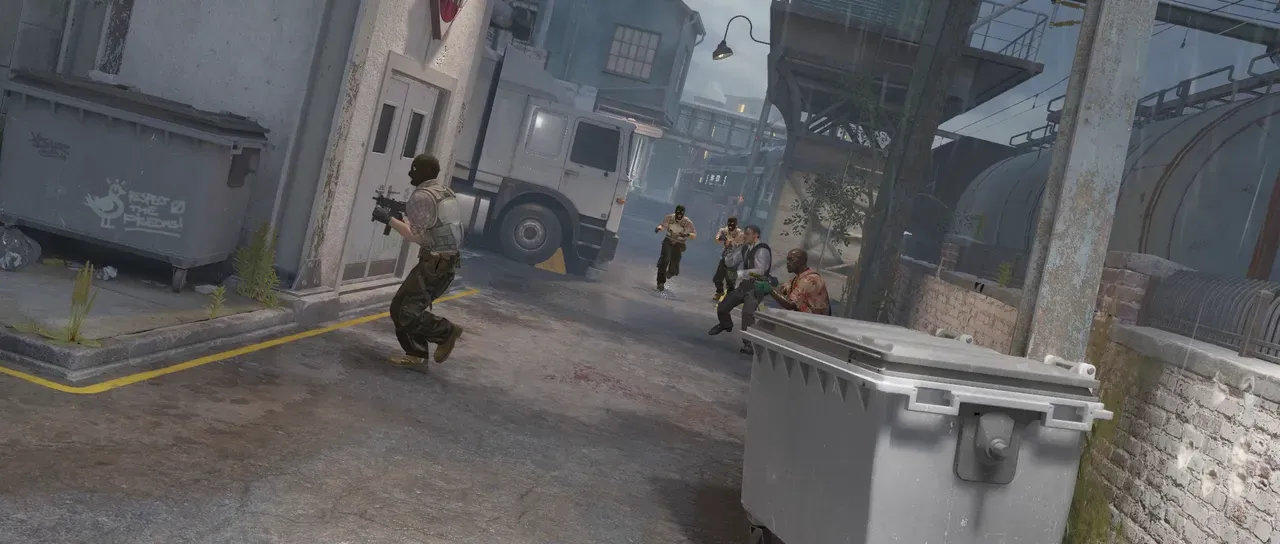
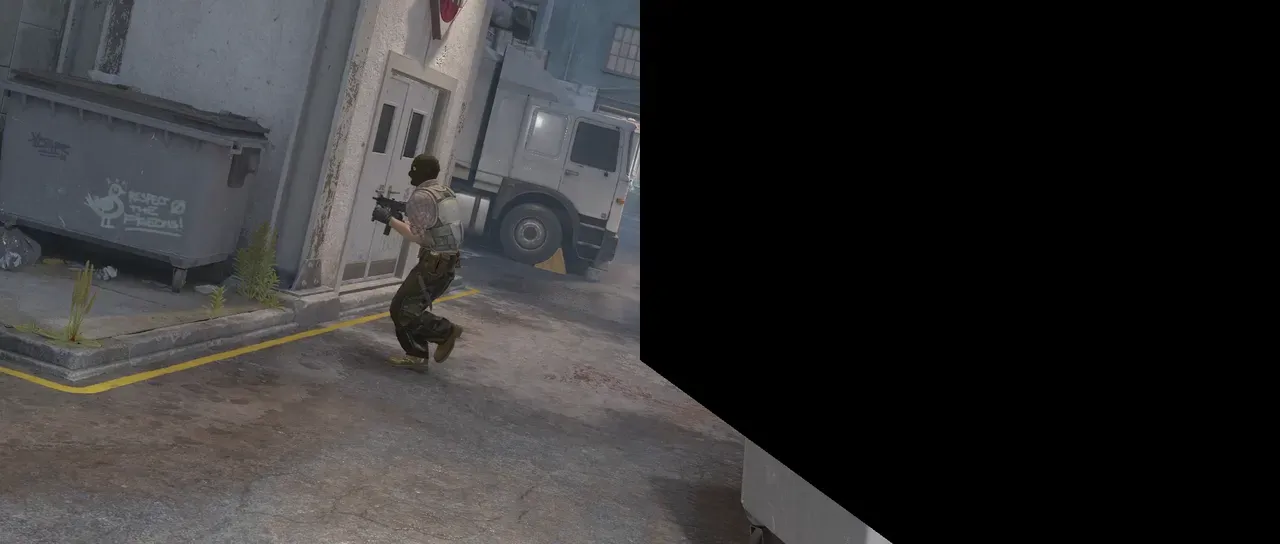
Section titled “What it does”Wipes the frame around a centre point, like a clock.
Parameters
Section titled “Parameters”| Parameter | Control | Range | Default | Unit |
|---|---|---|---|---|
| Wipe centre x | Slider | 0 to 3840; any value by typing | 960 | Pixels at composition size |
| Wipe centre y | Slider | 0 to 2160; any value by typing | 540 | Pixels at composition size |
| Completion | Slider | 0 to 100 | 50 | Per cent |
| Start angle | Dial | Any angle; snaps every 15° while a modifier is held | 0° | Degrees |
| Wipe | Dropdown | Clockwise · Anticlockwise · Both | Clockwise | - |
| Feather | Slider | 0 to 500; higher | 0 | Pixels at composition size |
| Mix | Slider | 0 to 100 | 100 | Per cent |
| Blend | Dropdown | Normal · Darken · Multiply · Colour burn · Linear burn · Darker colour · Add · Lighten · Screen · Colour dodge · Lighter colour · Overlay · Soft light · Hard light · Linear light · Vivid light · Pin light · Hard mix · Difference · Exclusion · Subtract · Divide · Hue · Saturation · Colour · Luminosity | Normal | - |
| Matte | Layer | Any layer in the composition | None | - |
| Invert | Checkbox | On or off | Off | - |
| Channel | Dropdown | Luminance · Alpha · Red · Green · Blue | Luminance | - |
In the Effect Controls panel:
- Matte scales Completion per pixel: the hand has swept further where the matte is bright, so a grey ramp opens the wedge unevenly and a black matte holds the frame back. Invert reads that matte inverted.
What each control does
Section titled “What each control does”- Wipe centre x and Wipe centre y position the wipe’s centre.
- Completion is how far the sweep is, as a percentage.
- Start angle is the direction the sweep begins from.
- Wipe chooses which way the wedge opens.
- Feather softens the sweeping edge.
- Mix: how much of the result replaces the original.
- Matte and Invert drive the strength of the effect from another layer’s brightness; see Effects.