
Reference / Effects / Generate
Updated
Label points
Label points is a Generate effect.
What it does
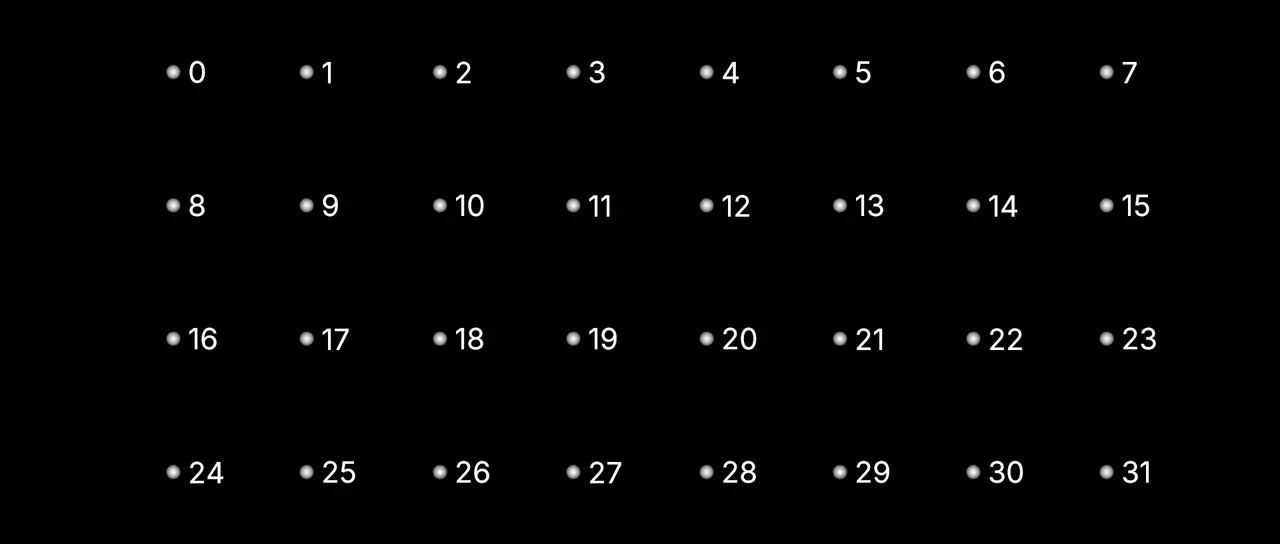
Section titled “What it does”Reads the stream on its Points socket and writes a label beside every point. The look comes from a Text layer: its font, size, colour and style. The wording is a template, typed into the Text row, or the Text layer’s own text while that row is empty. The Text layer can be hidden and still be read.
| In the template | Written as |
|---|---|
{index} | The point’s place in the stream. |
{number} | The number it carries. |
{x} and {y} | Where it is seen on the frame, in pixels at composition size. |
{id} | Its id. |
{size} | Its size. |
{age} | Its age. |
{attr:NAME} | The number it carries under the name NAME. |
{@NAME} | One of the @ names. {@index}, {@id} and {@n} are written whole. |
{pick:a|b|c} | One of the words between the bars, chosen per point. |
{chars:N} | N random letters and digits (up to 64). |
{hex:N} | N random hexadecimal digits (up to 64). |
Any other text is written as it is, at every point. So is a token whose name reads nothing. See Names.
The random tokens give each point its own text, the same on every frame and whatever order the points come in; Seed rolls a new set. A list of words longer than the Text row holds can be the Text layer’s own text, with the Text row left empty.
Labels follow where the points are seen and do not turn with them; Label rotation turns them. A point behind the camera has no label.
Parameters
Section titled “Parameters”| Parameter | Control | Range | Default | Unit |
|---|---|---|---|---|
| Apply to | Dropdown | All points · Picked · Not picked | All points | - |
| Group | Text | A short line of text | Empty | - |
| Threshold | Slider | 0 to 1; any value by typing | 0.5 | - |
| Text layer | Layer | Any layer in the composition | None | - |
| Text | Text | A short line of text | Empty | - |
| Decimals | Slider, whole numbers | 0 to 4 | 0 | - |
| Seed | Seed | Any whole number | A fresh random seed per instance | - |
| Offset x | Slider | -200 to 200; any value by typing | 8 | Pixels at composition size |
| Offset y | Slider | -200 to 200; any value by typing | 0 | Pixels at composition size |
| Anchor | Dropdown | Left · Centre · Right | Left | - |
| Vertical anchor | Dropdown | Middle · Top · Bottom | Middle | - |
| Max labels | Slider, whole numbers | 1 to 2000 | 300 | - |
| Change | Slider | 0 to 100; any value by typing | 0 | Per cent |
| Change above | Slider | 0 to 100; any value by typing | 50 | Per cent |
| Scramble rate | Slider | 0 to 60; higher | 12 | - |
| Text step | Slider | 0 to 1000; any value by typing | 0 | - |
| Flash colour | Dropdown | Off · Random hue · Two colours · By strength · Gradient | Off | - |
| Colour A | Colour | Each channel 0 to 4, scene-linear | 1, 0.2, 0.1, 1 | - |
| Colour B | Colour | Each channel 0 to 4, scene-linear | 0.1, 0.6, 1, 1 | - |
| Hue start | Dial | Any angle; snaps every 15° while a modifier is held | 0° | Degrees |
| Hue range | Slider | 0 to 360; any value by typing | 200 | - |
| Saturation | Slider | 0 to 100 | 80 | Per cent |
| Darken | Slider | 0 to 100 | 50 | Per cent |
| Gradient stops | Slider, whole numbers | 2 to 4 | 4 | - |
| Gradient 1 | Colour | Each channel 0 to 4, scene-linear | 1, 1, 1, 1 | - |
| Gradient 2 | Colour | Each channel 0 to 4, scene-linear | 0.63, 0.67, 0.34, 1 | - |
| Gradient 3 | Colour | Each channel 0 to 4, scene-linear | 0.08, 0.41, 0.13, 1 | - |
| Gradient 4 | Colour | Each channel 0 to 4, scene-linear | 0.006, 0.11, 0.22, 1 | - |
| Label scale | Slider | 0 to 400; higher | 100 | Per cent |
| Grow | Slider | 0 to 200; higher | 0 | Per cent |
| Label rotation | Dial | Any angle; snaps every 15° while a modifier is held | 0° | Degrees |
| Mix | Slider | 0 to 100 | 100 | Per cent |
| Blend | Dropdown | Normal · Darken · Multiply · Colour burn · Linear burn · Darker colour · Add · Lighten · Screen · Colour dodge · Lighter colour · Overlay · Soft light · Hard light · Linear light · Vivid light · Pin light · Hard mix · Difference · Exclusion · Subtract · Divide · Hue · Saturation · Colour · Luminosity | Normal | - |
| Matte | Layer | Any layer in the composition | None | - |
| Invert | Checkbox | On or off | Off | - |
| Channel | Dropdown | Luminance · Alpha · Red · Green · Blue | Luminance | - |
In the Effect Controls panel:
- Group is editable while Apply to is anything but All points.
- Threshold is editable while Apply to is anything but All points.
- Colour A is editable while Flash colour is set to Two colours.
- Colour B is editable while Flash colour is set to Two colours.
- Hue start is editable while Flash colour is set to By strength.
- Hue range is editable while Flash colour is set to By strength.
- Saturation is editable while Flash colour is set to By strength.
- Darken is editable while Flash colour is set to By strength.
- Gradient stops is editable while Flash colour is set to Gradient.
- Gradient 1 is editable while Flash colour is set to Gradient.
- Gradient 2 is editable while Flash colour is set to Gradient.
- Gradient 3 is editable while Flash colour is set to Gradient.
- Gradient 4 is editable while Flash colour is set to Gradient.
- Matte is an input to an effect, scaling the strength. Invert inverts the mattes for calculating strength.
What each control does
Section titled “What each control does”- Apply to: which points get a label.
- Group: the group Picked and Not picked go by, as a name. Left empty, they go by the points a Pick points picked. See Names.
- Threshold: what a point’s Group must read above to be in it. It is read only with a Group named.
- Text layer: the Text layer whose look the labels take. Unset draws nothing, unless this effect is on a Text layer.
- Text: the template. The Text layer then gives only the look. Left empty, the Text layer’s own text is the template.
- Decimals: how many decimal places the numbers in a label are written to.
- Seed: which words and characters the random tokens choose.
- Offset x and Offset y: how far across and down from its point a label sits.
- Anchor: which part of the label sits at that offset. Left runs the text away to the right of it, and Right to the left.
- Vertical anchor: which part of the label’s height sits at that offset, and what it turns and grows about. Top hangs it from its point.
- Max labels: the most labels drawn. Past it the newest points keep theirs.
- Change: how much a wave is at a point. Wire a driver into it, an Oscillator with Phase from on Position say, and each point reads its own value.
- Change above: above it a point is in the wave: its random tokens scramble at Scramble rate and its colour flashes as Flash colour says, Colour A and Colour B for Two colours. Below it the label rests on its own text and the Text layer’s colour.
- Text step: each whole number gives the random tokens a new roll, which stays. Wire Ring wave’s Passes into it and a label keeps the text the last ring left it with.
- Flash colour on By strength: the label’s own colour multiplied by a colour that grows with Change, from none at 0 to Hue start plus Hue range, Saturation and Darken at 100, smoothly and whatever Change above says. Past 100 the hue keeps turning round.
- Flash colour on Gradient: the label’s own colour multiplied by a gradient of your colours, Gradient 1 at Change 0 to the last of Gradient stops at 100, evenly spaced.
- Label scale: how big a label is drawn, per cent of the Text layer’s size; wired, each label takes its own. Grow adds to it with Change: at 100 a label is that much bigger.
- Label rotation: how far a label turns about its anchor, clockwise; wired, each label turns its own way. Labels are drawn between pixels, at any size and turn.
- Mix: how much of the result replaces the picture underneath.
- Matte and Invert drive the strength of the effect from another layer’s brightness. See Effects.