
Reference / Effects / Generate
Updated
Transform points
Transform points is a Generate effect.
What it does
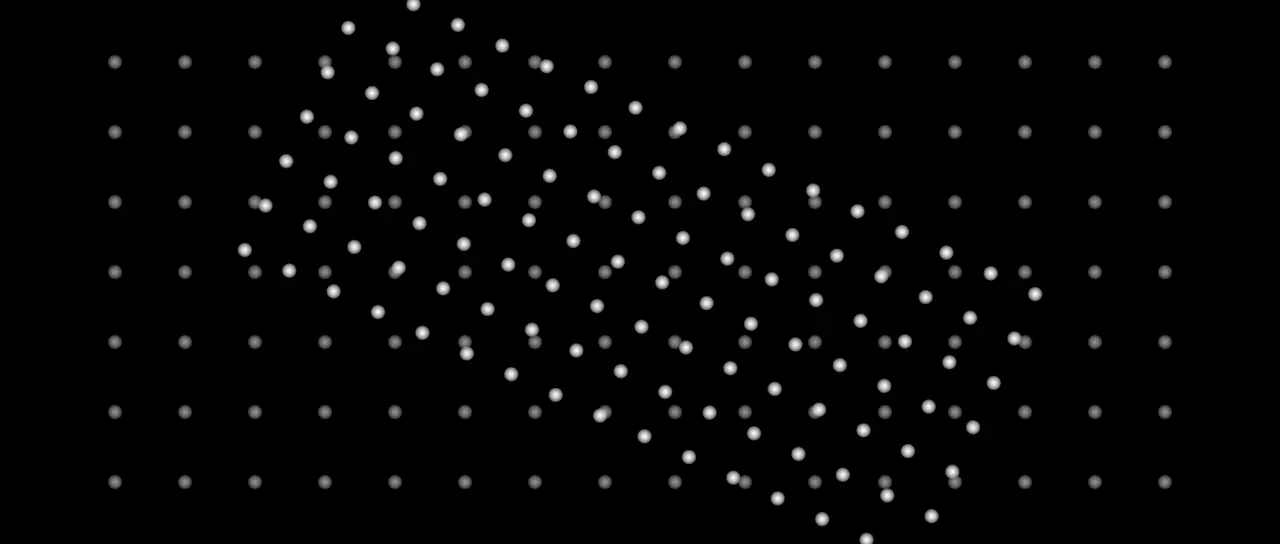
Section titled “What it does”Reads the stream on its Points socket and moves it as one. Every point is scaled away from an anchor, turned round it, then placed as Place says. The points keep their own sizes and rotations unless Scale sizes and Turn points are on.
A share of the frame and a pinned place are measured on the composition’s size, not the layer’s.
The changed points go out on its own Points socket and are drawn as discs.
Parameters
Section titled “Parameters”| Parameter | Control | Range | Default | Unit |
|---|---|---|---|---|
| Apply to | Dropdown | All points · Picked · Not picked | All points | - |
| Group | Text | A short line of text | Empty | - |
| Threshold | Slider | 0 to 1; any value by typing | 0.5 | - |
| Anchor to points | Checkbox | On or off | Off | - |
| Anchor in | Dropdown | Pixels · Share of frame | Pixels | - |
| Anchor x | Slider | 0 to 3840; any value by typing | 960 | Pixels at composition size |
| Anchor y | Slider | 0 to 2160; any value by typing | 540 | Pixels at composition size |
| Anchor x | Slider | 0 to 100; any value by typing | 50 | Per cent |
| Anchor y | Slider | 0 to 100; any value by typing | 50 | Per cent |
| Anchor on points x | Slider | 0 to 100; any value by typing | 50 | Per cent |
| Anchor on points y | Slider | 0 to 100; any value by typing | 50 | Per cent |
| Place | Dropdown | Offset · Share of frame · Pinned | Offset | - |
| Place x | Slider | 0 to 100; any value by typing | 50 | Per cent |
| Place y | Slider | 0 to 100; any value by typing | 50 | Per cent |
| Pin to | Dropdown | Top left · Top · Top right · Left · Centre · Right · Bottom left · Bottom · Bottom right | Centre | - |
| Position x | Slider | -2000 to 2000; any value by typing | 0 | Pixels at composition size |
| Position y | Slider | -2000 to 2000; any value by typing | 0 | Pixels at composition size |
| Position z | Slider | -2000 to 2000; any value by typing | 0 | Pixels at composition size |
| Scale x % | Slider | 0 to 400; any value by typing | 100 | Per cent |
| Scale y % | Slider | 0 to 400; any value by typing | 100 | Per cent |
| Rotation | Dial | Any angle; snaps every 15° while a modifier is held | 0° | Degrees |
| Scale sizes | Checkbox | On or off | Off | - |
| Turn points | Checkbox | On or off | Off | - |
| Feather | Slider | 0 to 100 | 100 | Per cent |
| Mix | Slider | 0 to 100 | 100 | Per cent |
| Blend | Dropdown | Normal · Darken · Multiply · Colour burn · Linear burn · Darker colour · Add · Lighten · Screen · Colour dodge · Lighter colour · Overlay · Soft light · Hard light · Linear light · Vivid light · Pin light · Hard mix · Difference · Exclusion · Subtract · Divide · Hue · Saturation · Colour · Luminosity | Normal | - |
| Matte | Layer | Any layer in the composition | None | - |
| Invert | Checkbox | On or off | Off | - |
| Channel | Dropdown | Luminance · Alpha · Red · Green · Blue | Luminance | - |
In the Effect Controls panel:
- Anchor groups Anchor to points, Anchor in.
- Transform groups Place.
- Point groups Scale sizes, Turn points, Feather.
- Group is editable while Apply to is anything but All points.
- Threshold is editable while Apply to is anything but All points.
- Anchor in is editable while Anchor to points is off.
- Anchor x is editable while Anchor to points is off.
- Anchor y is editable while Anchor to points is off.
- Anchor x is editable while Anchor to points is off.
- Anchor y is editable while Anchor to points is off.
- Anchor on points x is editable while Anchor to points is on.
- Anchor on points y is editable while Anchor to points is on.
- Matte is an input to an effect, scaling the strength. Invert inverts the mattes for calculating strength.
What each control does
Section titled “What each control does”- Apply to: which points are moved. The rest pass through as they came.
- Group: the group Picked and Not picked go by, as a name. Left empty, they go by the points a Pick points picked. See Names.
- Threshold: what a point’s Group must read above to be in it. It is read only with a Group named.
- Anchor to points: puts the anchor on the box round the points being moved, in place of a place in the frame.
- Anchor in: how an anchor in the frame is given. Pixels is a place in pixels. Share of frame is a per cent of the composition’s size, and stays put when the composition is resized.
- Anchor x and Anchor y: the place the stream is scaled from and turned round. As a share of the frame, 0 is the composition’s left or top edge and 100 its right or bottom.
- Anchor on points x and Anchor on points y: where on that box the anchor sits. 0 is its left or top edge and 100 its right or bottom.
- Place: how the stream is placed. Offset moves it by Position from where it came. Share of frame moves it until the anchor lands on a share of the composition. Pinned moves it until the anchor lands Position away from the corner, edge or centre of the composition that Pin to names.
- Place x and Place y: how far across and down the composition the anchor lands, as a per cent of its size. They show for Share of frame.
- Pin to: the place in the composition that Position is measured from. It shows for Pinned. Bottom right, with the anchor at the points’ own bottom right and Position at -32 and -32, sits the points 32 pixels in from that corner.
- Position x and Position y: how far the stream is moved across and down. Pinned, they are how far from the Pin to place the anchor lands. They show for Offset and Pinned.
- Position z: how far the stream is moved through the layer’s plane, however it is placed.
- Scale x % and Scale y %: how far the stream is spread from the anchor, across and down. A negative number flips it.
- Rotation: how far the stream is turned round the anchor.
- Scale sizes: the points grow and shrink with the stream.
- Turn points: the points turn with the stream.
- Feather: how soft the edge of a drawn disc is.
- Mix: how much of the drawing lands on the picture. At nought the points are still handed on.
- Matte and Invert drive the strength of the effect from another layer’s brightness. See Effects.