
Reference / Effects / Blur & sharpen
Updated
Channel blur
Channel blur is a Blur & sharpen effect.
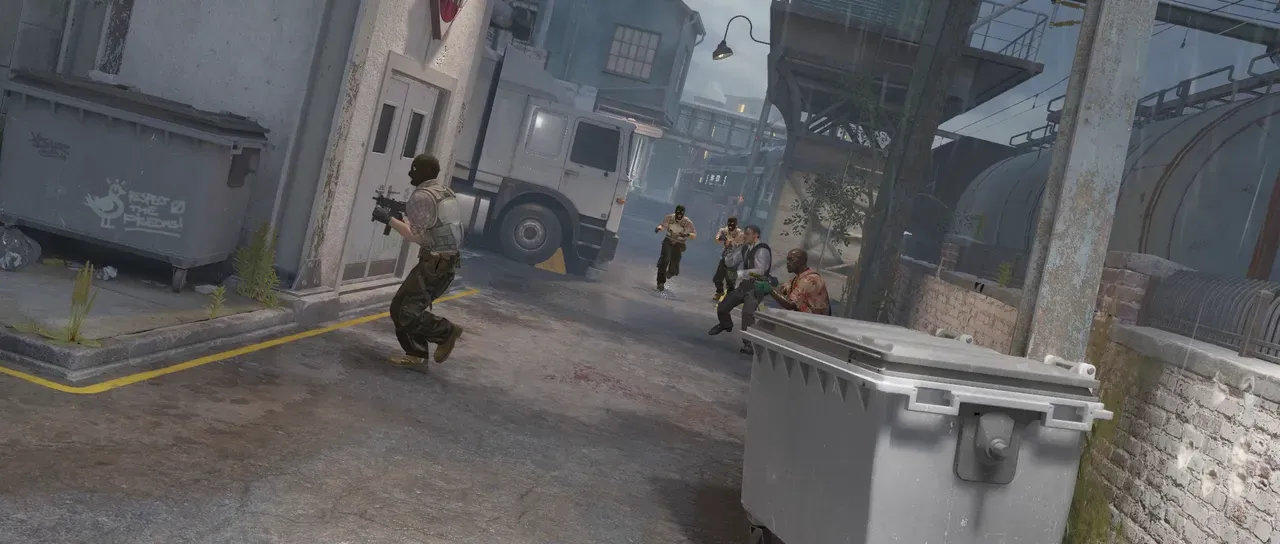
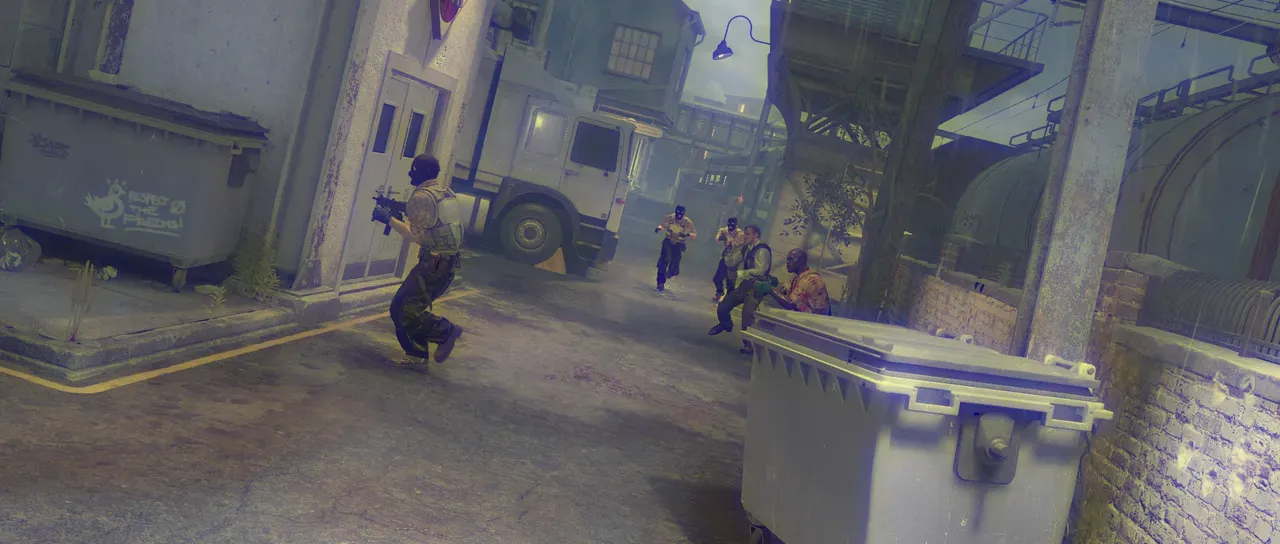
What it does
Section titled “What it does”Applies Gaussian blur on a per-channel basis. This allows you to alter the red, green, blue and alpha channels’ blur separately.
Parameters
Section titled “Parameters”| Parameter | Control | Range | Default | Unit |
|---|---|---|---|---|
| Red blur | Slider | 0 to 500; up to 2000 | 0 | Pixels at composition size |
| Green blur | Slider | 0 to 500; up to 2000 | 0 | Pixels at composition size |
| Blue blur | Slider | 0 to 500; up to 2000 | 40 | Pixels at composition size |
| Alpha blur | Slider | 0 to 500; up to 2000 | 0 | Pixels at composition size |
| Repeat edge pixels | Checkbox | On or off | On | - |
| Mix | Slider | 0 to 100 | 100 | Per cent |
| Blend | Dropdown | Normal · Darken · Multiply · Colour burn · Linear burn · Darker colour · Add · Lighten · Screen · Colour dodge · Lighter colour · Overlay · Soft light · Hard light · Linear light · Vivid light · Pin light · Hard mix · Difference · Exclusion · Subtract · Divide · Hue · Saturation · Colour · Luminosity | Normal | - |
| Matte | Layer | Any layer in the composition | None | - |
| Invert | Checkbox | On or off | Off | - |
| Channel | Dropdown | Luminance · Alpha · Red · Green · Blue | Luminance | - |
In the Effect Controls panel:
- Matte scales all four blur radii per pixel: white blurs each channel at its full radius, grey narrower, black not at all. Invert reads that matte inverted.
What each control does
Section titled “What each control does”- Red blur, Green blur and Blue blur set how far each colour channel is spread.
- Alpha blur does the same for transparency.
- Repeat edge pixels: on holds the border pixel outward. Off will blur edges with a colour/alpha value of 0 and past them, and the layer grows to hold the blur.
- Mix: how much of the result replaces the original.
- Matte and Invert drive the blur amount from another layer’s brightness; see Effects.