
Guides / Using Lumit / Projects and media
Updated
Compositions
A composition is a timeline with a fixed resolution, frame rate, and duration. It holds an ordered stack of layers.
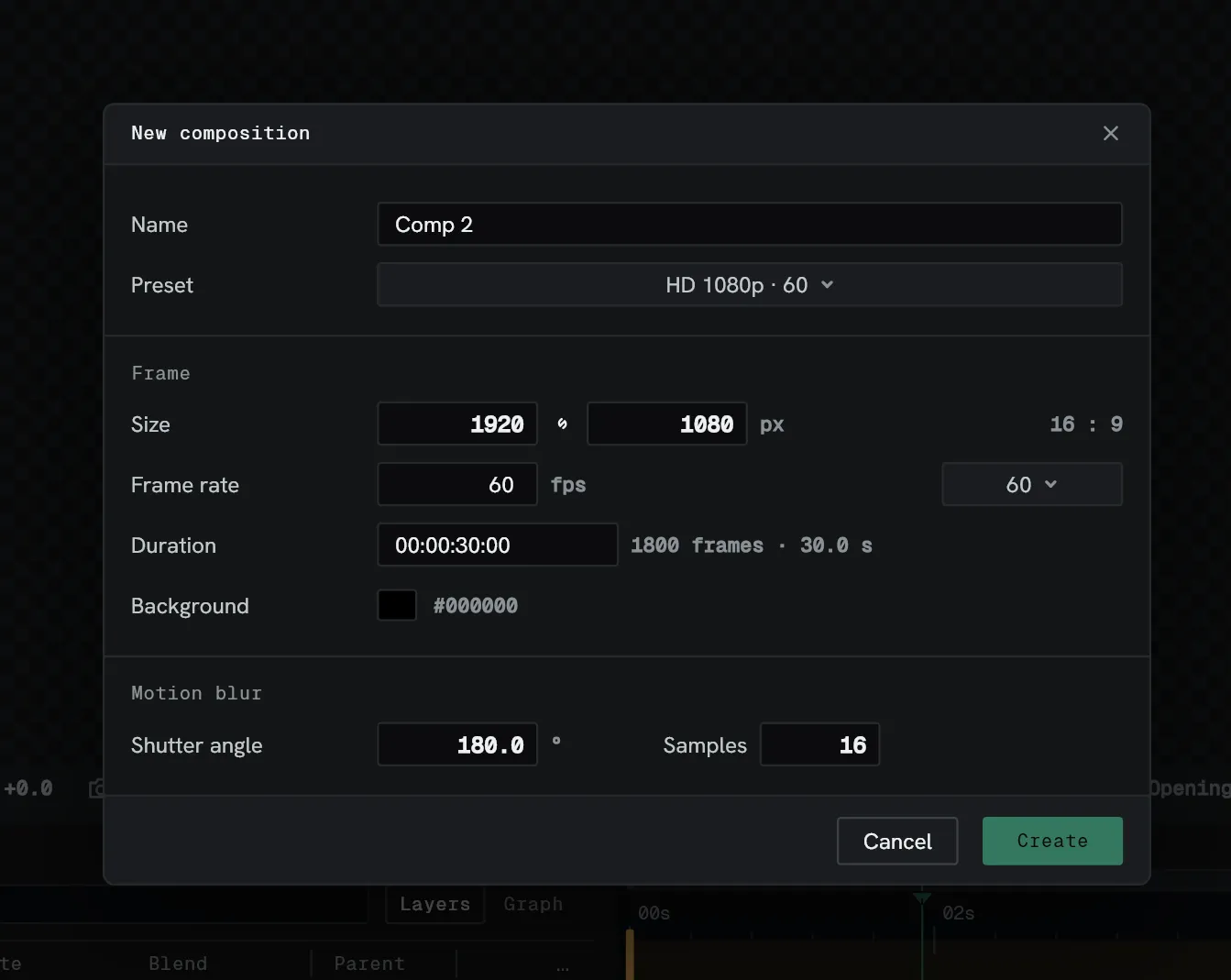
One project can have multiple compositions. A composition is an asset, so it sits in the Project panel.
Make a composition
Section titled “Make a composition”- Choose Composition ▸ New composition.
- Set the resolution, frame rate, and duration.
- Confirm.
Duplicate on a composition’s right-click menu in the Project panel, or Composition ▸ Duplicate composition, makes a copy beside it. When it nests other compositions, Lumit asks whether the copy shares them with the original or gets its own.
Change the settings
Section titled “Change the settings”Choose Composition ▸ Composition settings. Any of these settings can be changed at any time. Additionally, right-clicking a composition in the Timeline or Project panel brings up a popup menu with the composition settings as an option.
Changing the width or height keeps the picture centred: every layer without a parent moves by half the change.
Changing the frame rate does not move your layers or keyframes. If they no longer line up with composition frames and snapping is enabled, the next time you move them they will align with the new frame rate.
Nest one composition in another
Section titled “Nest one composition in another”A composition used as a layer inside another is a Precomp layer. The verb is precompose.
Precompose when you want to:
- Treat a group of layers as one object.
- Apply one effect to several layers at once.
- Retime a whole group of layers together.
Select the layers and choose Layer ▸ Pre-compose…, or right-click one of them in the
timeline and choose Pre-compose…. The shortcut by default is Ctrl+Shift+C. Each
opens the Pre-compose dialogue.
| Option | Does |
|---|---|
| New composition name | The new composition’s name. |
| Leave all attributes in ‘composition’ | Moves the one layer in as its bare source, and keeps its transform, effects, masks, Retime, blend mode and switches on the Precomp layer. One layer only. |
| Move all attributes into the new composition | Puts the selected layers and everything on them in the new composition. |
| Adjust the duration to the span of the selected layers | Makes the new composition as long as the selection instead of the composition. |
| Open the new composition | Opens it once it is made. |
The choices are kept for next time. The row menu leaves locked layers out.
When a parent or track matte links the selected layers to layers left outside, Lumit asks first, then duplicates the layer at the other end of each link, hidden, so both sides keep their links.
A Precomp layer supports Retime, so the speed of a nested composition can be ramped.
A composition holds a layer stack or a node graph, never both. Composition ▸ New node graph makes the second kind. It nests the same way: as a Precomp layer in another composition, and as a Read box in another node graph.
Lumit refuses to place a composition inside itself.
The flowchart
Section titled “The flowchart”The flowchart draws the open composition between the compositions it is used in, on the
left, and the compositions it contains, on the right. Press Tab, or choose
Composition ▸ Flowchart. It opens at the pointer.
| Gesture | Result |
|---|---|
Click a composition, or press Enter | Front that composition. |
| Arrow keys | Move between compositions. |
| Arrow past a composition with a stub, or click the stub | Move the chart along to that composition. |
Tab, Esc, or a click outside | Close the flowchart. |
Tab opens the flowchart only while no control has focus.