
Guides / Using Lumit / Effects
Updated
The node graph
The Node graph draws the selected layer’s effect stack as boxes joined left to right by wires. It is the same stack the Effect Controls panel lists, with the ability to wire a driver into parameters.
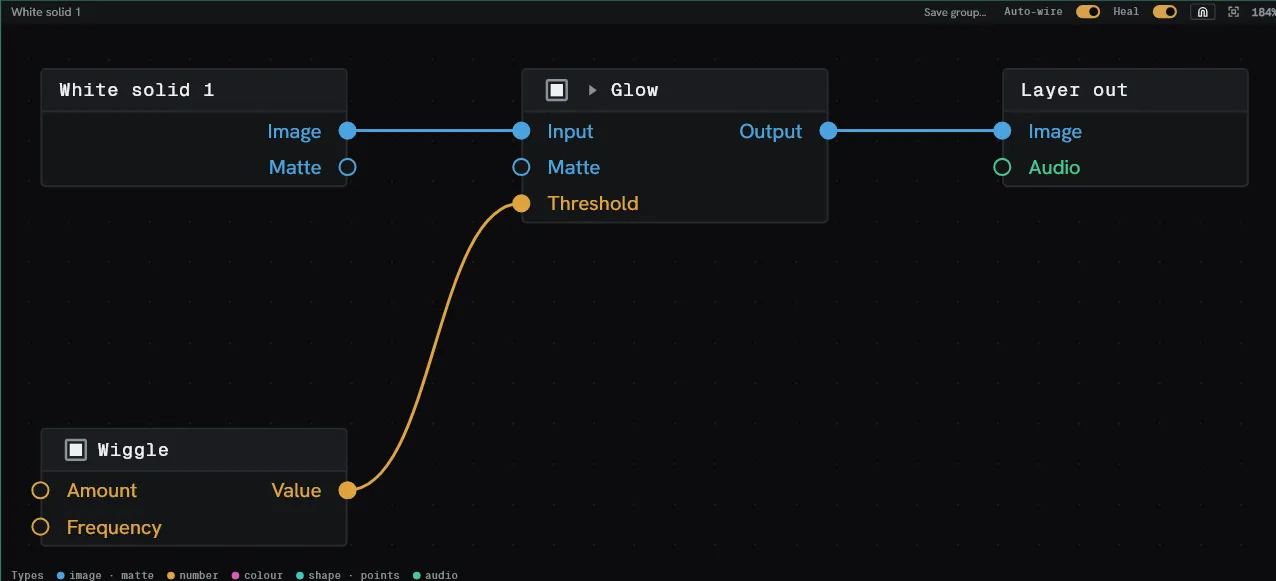
Open it from Window ▸ Node graph, or switch to the Nodes workspace. The panel follows the layer selected in the Timeline.
The image chain
Section titled “The image chain”Every graph starts with Source, one box per effect in order, and Layer out.
| Gesture | What it does |
|---|---|
| Drop a node onto a wire | Inserts it at that point in the stack. |
| Drag a box’s body | Moves it. A drag that starts inside the selection moves the whole selection. |
| Drag from a socket | Pulls out a wire. Drop it on a socket that takes the same kind of value. |
| Drag a wire off an effect’s input | Bypasses that effect. The picture goes past it and it keeps its place in the stack. |
| Drop a wire back on it | Switches it back on, and moves it to where the wire says. |
| Drag the wire off Layer out | The layer draws nothing until something is plugged back in. |
Delete | Removes the picked boxes. |
Two switches sit in the panel’s toolbar. Auto-wire joins a dropped node to the wire in hand as it lands. Heal reconnects the neighbours of a deleted box.
Getting about the canvas
Section titled “Getting about the canvas”- Middle-drag pans. The wheel zooms about the pointer.
- Frame all fits every box on screen.
- A primary drag on empty canvas sweeps a selection box. Click replaces the selection,
Ctrl-click toggles one,Shift-click adds, andCtrl+Aselects everything. - Dragging an effect from Effects & presets onto the canvas adds it: an effect joins the stack, a driver lands where it is let go.
- A right-click on empty canvas, or
TaborShift+Awith the canvas focused, opens the node search at the pointer, asctrl+spacedoes. Each of the three can be turned off in Settings ▸ Timeline. ctrl+spaceopens the node search. With a wire in hand the results are filtered to the kinds that wire can join, and picking one connects it.
Each box carries two small badges. The checkbox enables or disables a specific node and the picture passes through untouched. The twirl opens the node, displaying a socket for every parameter. In a node graph an open node also carries the parameters’ controls.
The checkbox and the wires say the same thing. A bypassed effect is drawn unwired, with hollow sockets and the chain running from the box before it to the box after. Switching one off in Effect controls unplugs it here, and unplugging it here switches it off there.
Groups
Section titled “Groups”A group is a named, coloured frame behind some boxes. It follows them as they move, and a group can sit inside another.
| Gesture | What it does |
|---|---|
Ctrl+G, or Group in the toolbar | Frames the picked boxes and starts typing the group’s name. Boxes picked inside a group are framed inside it, and whole groups picked together are framed as one. |
| Click a group’s bar | Picks every box in it. |
| Drag the bar | Moves the group. |
Double-click the bar, or F2 or Enter with it picked | Renames it. |
| Right-click the bar | Opens its menu: Rename, Colour…, Save group… and Ungroup. |
| Drop boxes on a frame | Moves them into that group. |
Ctrl+Shift+G | Takes the picked boxes out of the innermost group they are in. With a group’s bar picked, removes that frame and leaves its boxes. |
The two shortcuts are the ones set for grouping layers in the Timeline. Zoomed out, a group’s name keeps its size on screen.
Save group… asks for a name, a description, a colour and whether to show the group on
the shelf, and writes it to the preset library as a .lumgrp file: its effects and drivers,
the wires among them and their layout. Source and Layer out are never saved, and the groups
inside it are. Picked boxes that are not a group become one under that name. A name already
in the library asks whether to replace that group, and Replace writes over it. A saved
group is listed in the node search under Group. Inserting one adds its effects to the
end of the layer’s stack and puts its drivers where the search was opened.
A group shown on the shelf sits in a strip above the canvas, and a click there inserts it.
The folder button beside Save group… opens Saved groups. Click a group there to insert it. Each row shows how many boxes it holds and has three marks:
| Mark | What it does |
|---|---|
| Show on shelf | Pins the group to the shelf, or takes it off. |
| Edit group | Changes its name, description, colour and shelf tick. |
| Delete | Asks, then deletes the group’s file. Groups already on a canvas are not touched. |
Show folder opens the library in the file manager, and Close shuts the window. With nothing saved it reads No saved groups.
A note is a few words left on the canvas. It is not a box and is wired to nothing.
- Add note in the toolbar starts one in the middle of the canvas. Clicking away keeps it, and one left empty is not kept.
- Drag a note to move it.
- Double-click it to change its words.
- The twirl folds it down to its first line.
- Right-click it for Edit, Collapse, Colour and Delete.
A tie gathers wires at one spot, and they run side by side through it.
- Drag with the right button across wires to tie them.
- Drag a tie to move it.
- Right-click a tie, or drag across it with the right button, to let its wires go.
Drivers
Section titled “Drivers”A driver makes a value rather than a picture, and a wire from a driver into a parameter’s socket makes that parameter follow the value.
| Driver | Hands out |
|---|---|
| Wiggle | A random continuous number changing by an Amount at a Frequency. |
| Audio level | The loudness of the composition, a layer or a clip at this moment. |
| Colour cycle | A colour whose hue turns at a Rate. |
| Math | Two numbers and an operation. |
| Remap | Maps a number from one range onto another, with a clamp. |
| Smooth | Its input, softened over Time. |
| Split | A colour taken apart into its four numbers. |
| Combine | Four numbers put together as a colour. |
| Points sample | Reads a points stream: how many points are alive, and how far the nearest one is from a position. |
| Layer points | Another layer’s points, brought into this graph. |
| Expression | Whatever an expression returns: a number, a point or a colour. |
| Clone index | Which copy Clone to points is stamping a layer as. |
| Measure | The size and edges of a layer’s content. |
| Beat trigger | Events from beats and loud moments. |
Add one from the effect console, ctrl+space, where they are grouped under Controls,
and wire its output to a parameter’s socket.
Wires don’t cross between layers. The drivers that read another layer name it instead, with an ordinary layer picker: Audio level’s and Beat trigger’s Audio row, Layer points’ Points layer row and Measure’s Layer row.
A driven parameter’s row in Effect Controls names the driver in place of a value. Its keyframes are overridden while the wire is there, and come back when it is pulled.
Wires and their colours
Section titled “Wires and their colours”A wire’s colour is the type of value it carries:
- image · matte
- number
- colour
- shape · points
- audio
A wire dropped on a socket of another kind is refused.
Mattes and points
Section titled “Mattes and points”An effect’s Matte socket takes a wire as well as the layer picker on its row. An effect’s Output wired into the Matte of an effect below it mattes that effect by its picture. The wire is taken off if the two swap places.
Particulate and the rest of the points family have a socket of their own, for another box to read the point stream.
A points effect added below a producer is wired to the nearest one above it. The Points row at the top of its card in Effect controls shows the same wire and changes it.
Some points effects, such as Vary points and Pick points, take a stream and hand a changed one on. Merge points has four Points sockets, and takes a different producer above it on each.
Seeing the picture at a box
Section titled “Seeing the picture at a box”Selecting exactly one effect, a box here or a heading in Effect Controls, puts an at <effect> chip over the Viewer’s picture. Turn it on and the Viewer renders the composition with that layer’s stack stopping there.
The Nodes workspace
Section titled “The Nodes workspace”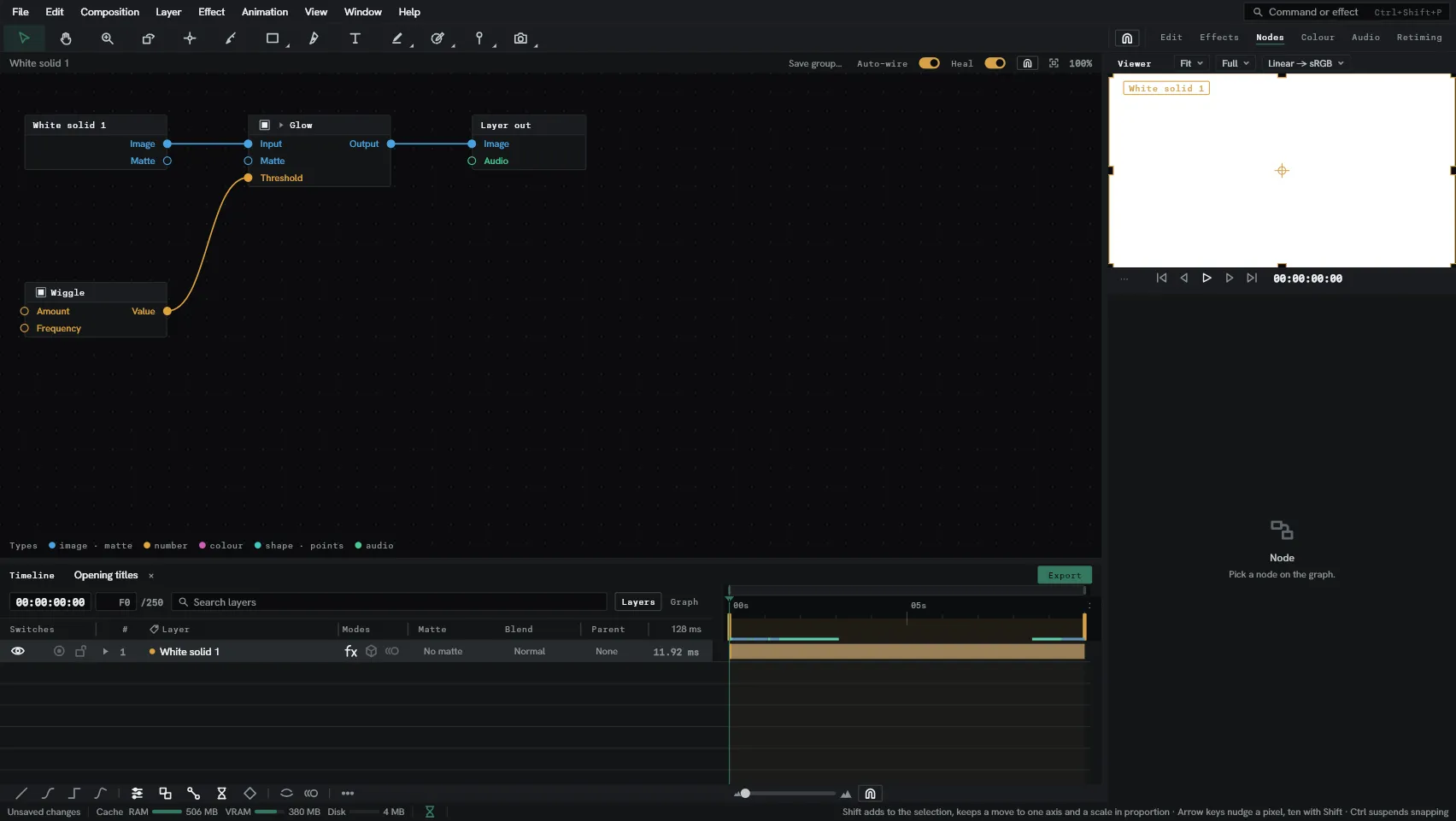
The Nodes workspace puts the node graph in the centre of your view, to allow for work dedicated to nodes. It also keeps the timeline visible to change the selected layer or the current frame. As well as the viewer to the right and the Node panel, which lists the picked box’s parameter rows.
The Node panel’s header shows the picked box’s name and, when wires drive any of its rows, how many: 2 driven. With no box picked it reads Pick a node on the graph., and on a box with no rows This box has nothing to set.