
Reference / Effects / Distortion
Updated
Bezier warp
Bezier warp is a Distortion effect.
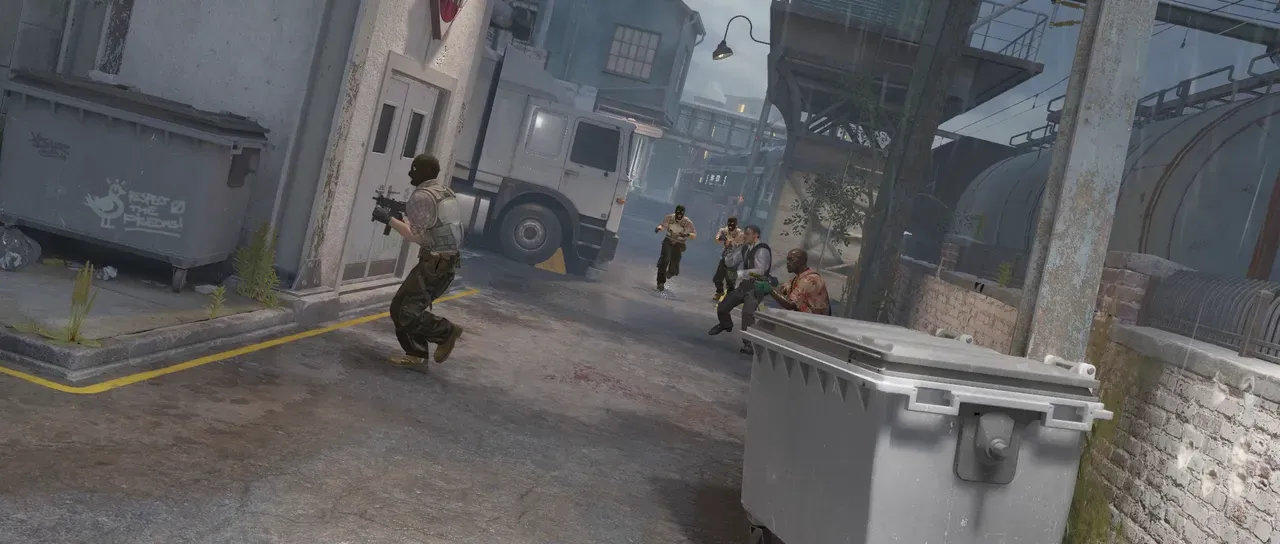
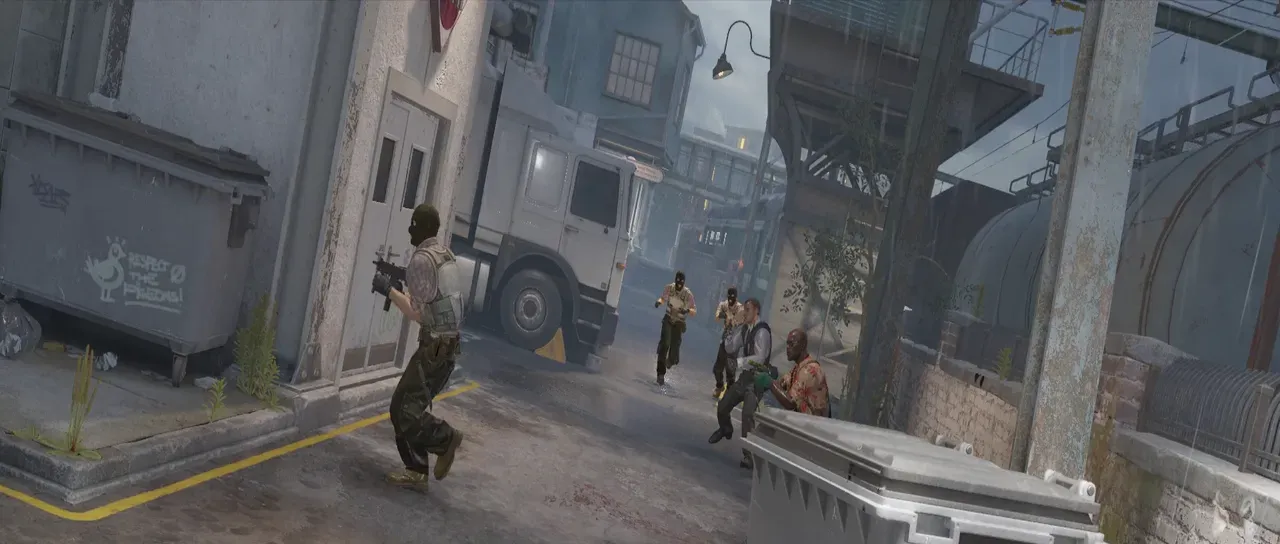
What it does
Section titled “What it does”Bezier warp gives each edge two handles, so an edge can bow, and the inside fills smoothly between the bowed edges.
Parameters
Section titled “Parameters”| Parameter | Control | Range | Default | Unit |
|---|---|---|---|---|
| Upper left x | Slider | 0 to 3840; any value by typing | 0 | Pixels at composition size |
| Upper left y | Slider | 0 to 2160; any value by typing | 0 | Pixels at composition size |
| Upper right x | Slider | 0 to 3840; any value by typing | 1920 | Pixels at composition size |
| Upper right y | Slider | 0 to 2160; any value by typing | 0 | Pixels at composition size |
| Lower right x | Slider | 0 to 3840; any value by typing | 1920 | Pixels at composition size |
| Lower right y | Slider | 0 to 2160; any value by typing | 1080 | Pixels at composition size |
| Lower left x | Slider | 0 to 3840; any value by typing | 0 | Pixels at composition size |
| Lower left y | Slider | 0 to 2160; any value by typing | 1080 | Pixels at composition size |
| Top left tangent x | Slider | 0 to 3840; any value by typing | 640 | Pixels at composition size |
| Top left tangent y | Slider | 0 to 2160; any value by typing | 0 | Pixels at composition size |
| Top right tangent x | Slider | 0 to 3840; any value by typing | 1280 | Pixels at composition size |
| Top right tangent y | Slider | 0 to 2160; any value by typing | 0 | Pixels at composition size |
| Right top tangent x | Slider | 0 to 3840; any value by typing | 1920 | Pixels at composition size |
| Right top tangent y | Slider | 0 to 2160; any value by typing | 360 | Pixels at composition size |
| Right bottom tangent x | Slider | 0 to 3840; any value by typing | 1920 | Pixels at composition size |
| Right bottom tangent y | Slider | 0 to 2160; any value by typing | 720 | Pixels at composition size |
| Bottom left tangent x | Slider | 0 to 3840; any value by typing | 640 | Pixels at composition size |
| Bottom left tangent y | Slider | 0 to 2160; any value by typing | 1080 | Pixels at composition size |
| Bottom right tangent x | Slider | 0 to 3840; any value by typing | 1280 | Pixels at composition size |
| Bottom right tangent y | Slider | 0 to 2160; any value by typing | 1080 | Pixels at composition size |
| Left top tangent x | Slider | 0 to 3840; any value by typing | 0 | Pixels at composition size |
| Left top tangent y | Slider | 0 to 2160; any value by typing | 360 | Pixels at composition size |
| Left bottom tangent x | Slider | 0 to 3840; any value by typing | 0 | Pixels at composition size |
| Left bottom tangent y | Slider | 0 to 2160; any value by typing | 720 | Pixels at composition size |
| Quality | Slider, whole numbers | 1 to 12 | 8 | - |
| Mix | Slider | 0 to 100 | 100 | Per cent |
| Blend | Dropdown | Normal · Darken · Multiply · Colour burn · Linear burn · Darker colour · Add · Lighten · Screen · Colour dodge · Lighter colour · Overlay · Soft light · Hard light · Linear light · Vivid light · Pin light · Hard mix · Difference · Exclusion · Subtract · Divide · Hue · Saturation · Colour · Luminosity | Normal | - |
| Matte | Layer | Any layer in the composition | None | - |
| Invert | Checkbox | On or off | Off | - |
| Channel | Dropdown | Luminance · Alpha · Red · Green · Blue | Luminance | - |
In the Effect Controls panel:
- Top edge groups Top left tangent x, Top left tangent y, Top right tangent x, Top right tangent y, and starts closed.
- Right edge groups Right top tangent x, Right top tangent y, Right bottom tangent x, Right bottom tangent y, and starts closed.
- Bottom edge groups Bottom left tangent x, Bottom left tangent y, Bottom right tangent x, Bottom right tangent y, and starts closed.
- Left edge groups Left top tangent x, Left top tangent y, Left bottom tangent x, Left bottom tangent y, and starts closed.
- Matte scales the bend from the straight frame per pixel, read where the pixel lands: white bends it all the way, grey part way, black leaves it where it was. Invert reads that matte inverted.
What each control does
Section titled “What each control does”- Upper left, Upper right, Lower right, Lower left are the four corners, in pixels at composition size. Bezier warp starts with them on the layer’s own corners.
- Top edge, Right edge, Bottom edge, Left edge each hold the two handles that bow that edge.
- Quality adjusts the maths required to position each pixel.
- Mix: how much of the result replaces the original.
- Matte and Invert drive the warp of the effect from another layer’s brightness; see Effects.