
Guides / Using Lumit / Effects
Updated
Addons and models
An addon is an optional download: the model runtime, or a model pack. Each pack is one trained model that reads your footage and hands back one thing: an in-between frame, a depth map, a matte, or the outline of what you clicked. They run on your own graphics card. Lumit works without any of them.
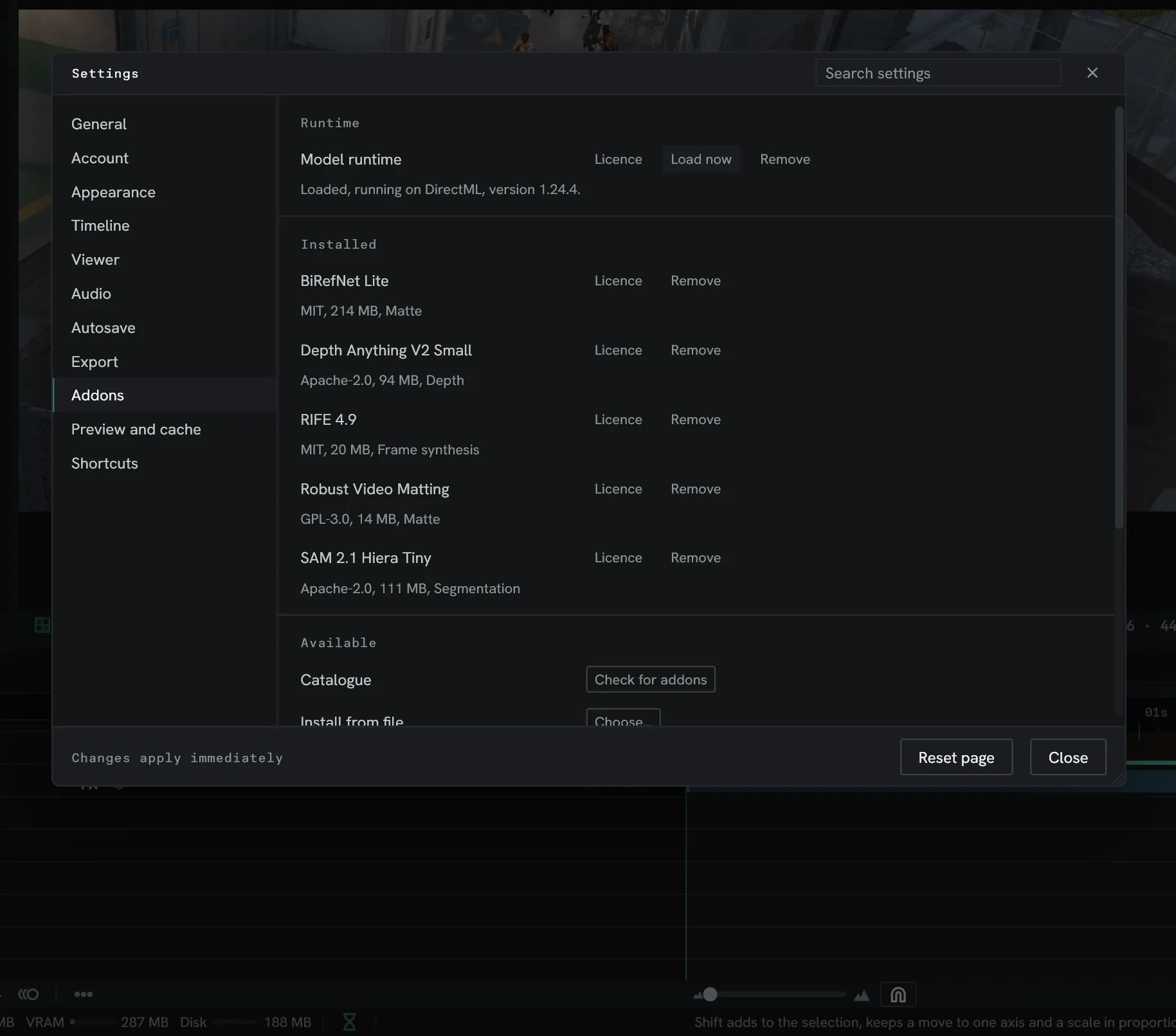
What each one is for
Section titled “What each one is for”| Addon | Size | What it makes | Used by |
|---|---|---|---|
| Model runtime | Nothing on its own. Every pack needs it. | All of them | |
| RIFE 4.9 | 20 MB | The frame between two real ones. | Flow |
| Depth Anything V2 Small | 94 MB | A depth map from a single frame. | Depth |
| Robust Video Matting | 14 MB | A matte for a person, carried frame to frame. | Remove background |
| BiRefNet Lite | 214 MB | A matte for the main subject of a frame. | Remove background |
| SAM 2.1 Hiera Tiny | 111 MB | The outline of the thing you click on. | Roto brush |
Every addon is an analysis model. Nothing generative is listed.
Install them
Section titled “Install them”1. Open Edit ▸ Settings… ▸ Addons. Nothing is installed yet.
2. Press Check for addons. Lumit fetches the catalogue. This button is the only time it looks. Each pack lists its licence and size, and reads Needs the runtime until the runtime is in.
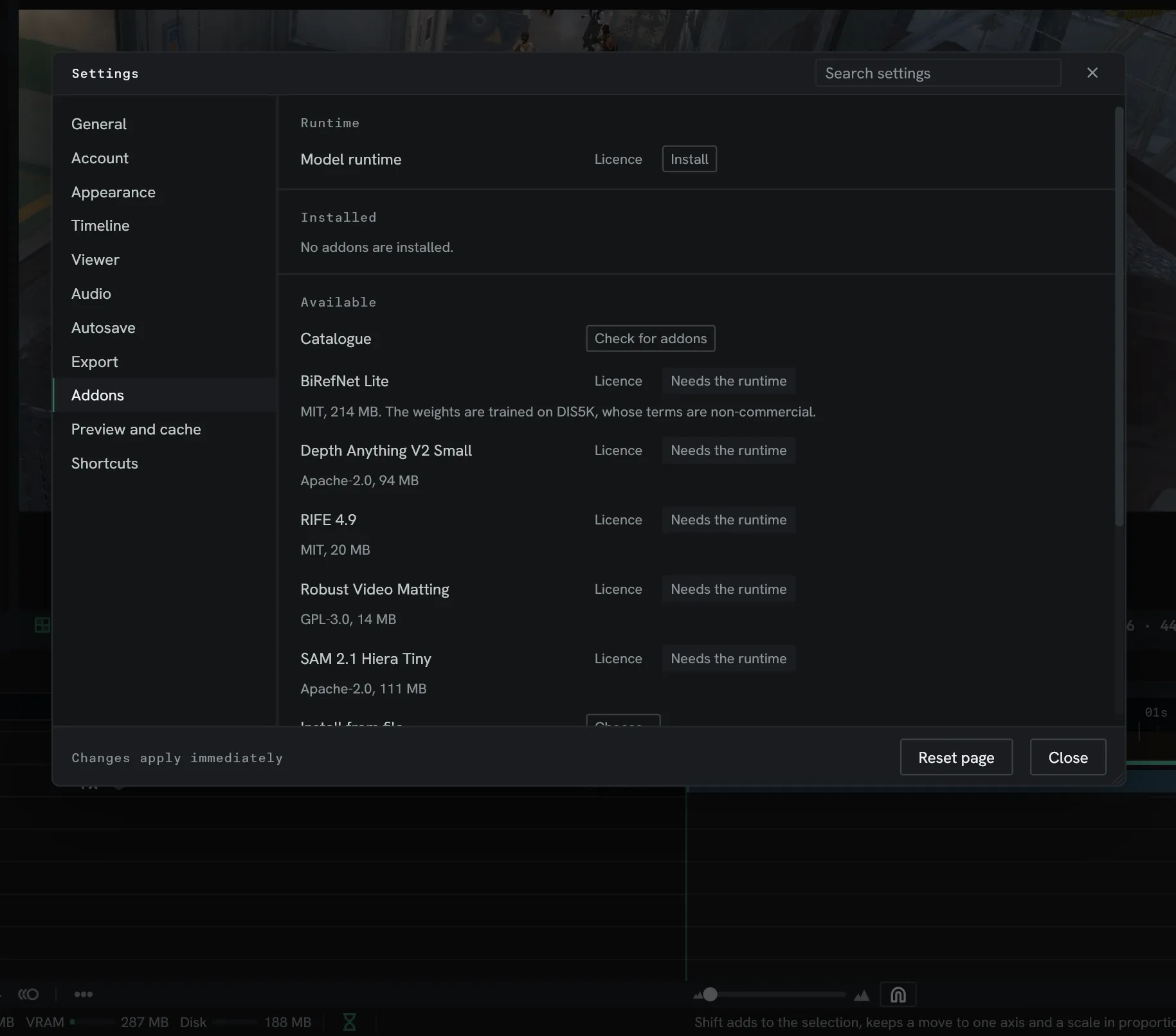
3. Install the Model runtime. Press Install on its row.
4. Install the packs you want. Each download is checked against its published hash before Lumit uses it.
5. Press Load now, or leave the runtime to load the first time an effect asks for it. The line under it names the graphics provider it is running on.
Install from file installs a pack from an addon.json with its files beside it, for a
machine with no network. Where they are kept ▸ Show opens the folder. Remove on a
row deletes that addon. Licence opens its licence in the browser.
Without the pack it needs, an effect wears a badge naming the pack and leaves the picture alone.
Where they are used
Section titled “Where they are used”Flow: RIFE
Section titled “Flow: RIFE”Flow makes the frames between real ones when a layer is slowed down. Turn it on with the Flow switch in the layer’s Modes column, or Layer ▸ Flow, then set Engine in its Flow group to RIFE.
The Flow group is in the layer’s rows in the Timeline, and in Effect controls while Settings ▸ Timeline ▸ Transform in Effect controls is on.
A machine without RIFE previews the layer with the built-in engine and says so on the row. An export of that layer is refused.
Effect ▸ Utility ▸ Depth, then Analyse. The shot is read once, in the background, and nearer is brighter.
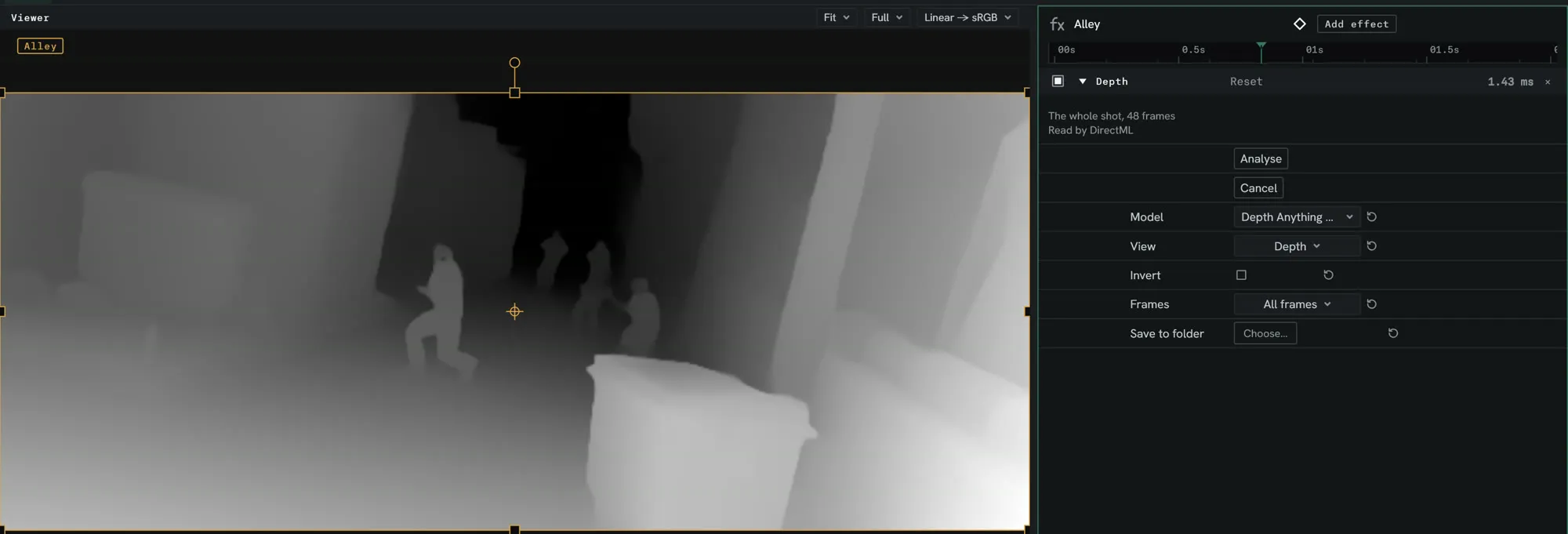
Point a Depth of field’s Matte row, a Set matte or a track matte at the layer to use it.
Remove background
Section titled “Remove background”Effect ▸ Utility ▸ Remove background, then Analyse. Model picks the pack:
- Robust Video Matting for a person in video. Detail sets Portrait or Full body.
- BiRefNet for the main subject, whatever it is, a frame at a time.
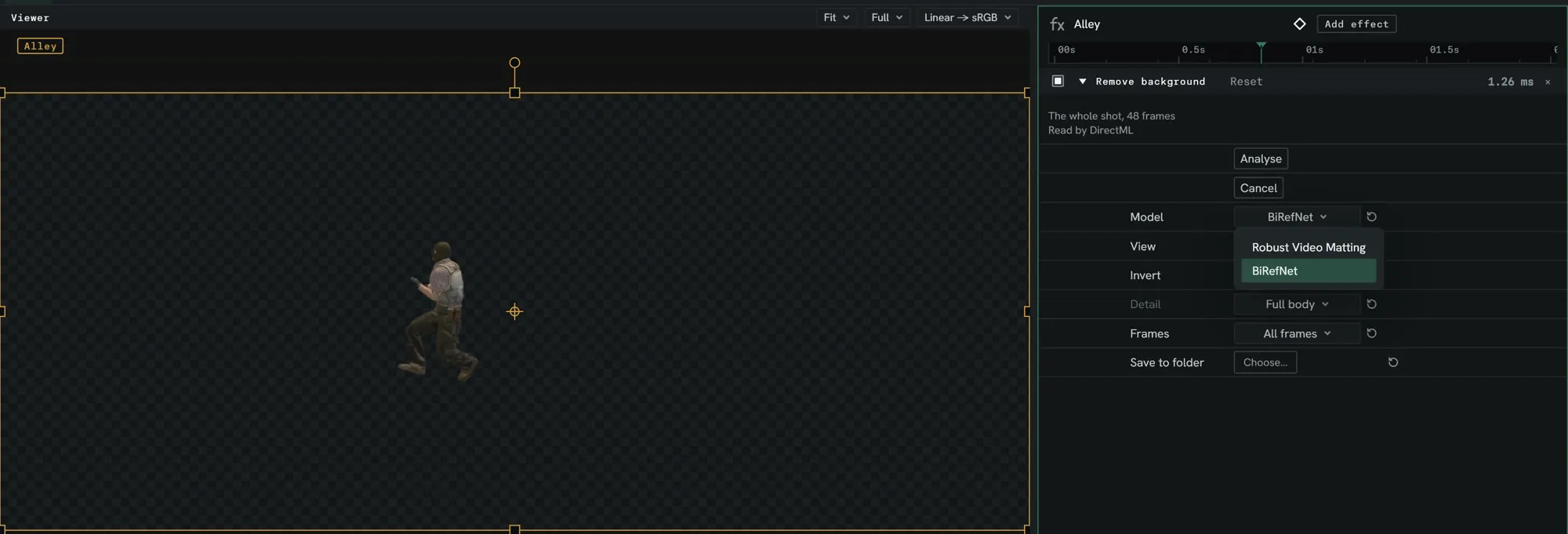
View shows the cut-out or the matte. Another layer reads the matte through its Matte row, a Set matte or a track matte.
Roto brush
Section titled “Roto brush”Set Seed from on the Roto brush to Segment. Pick the
Roto brush tool (Alt+W) and click the subject on the base frame. Each click refines
the outline, and Alt-click marks what is not the subject. Then press Propagate.
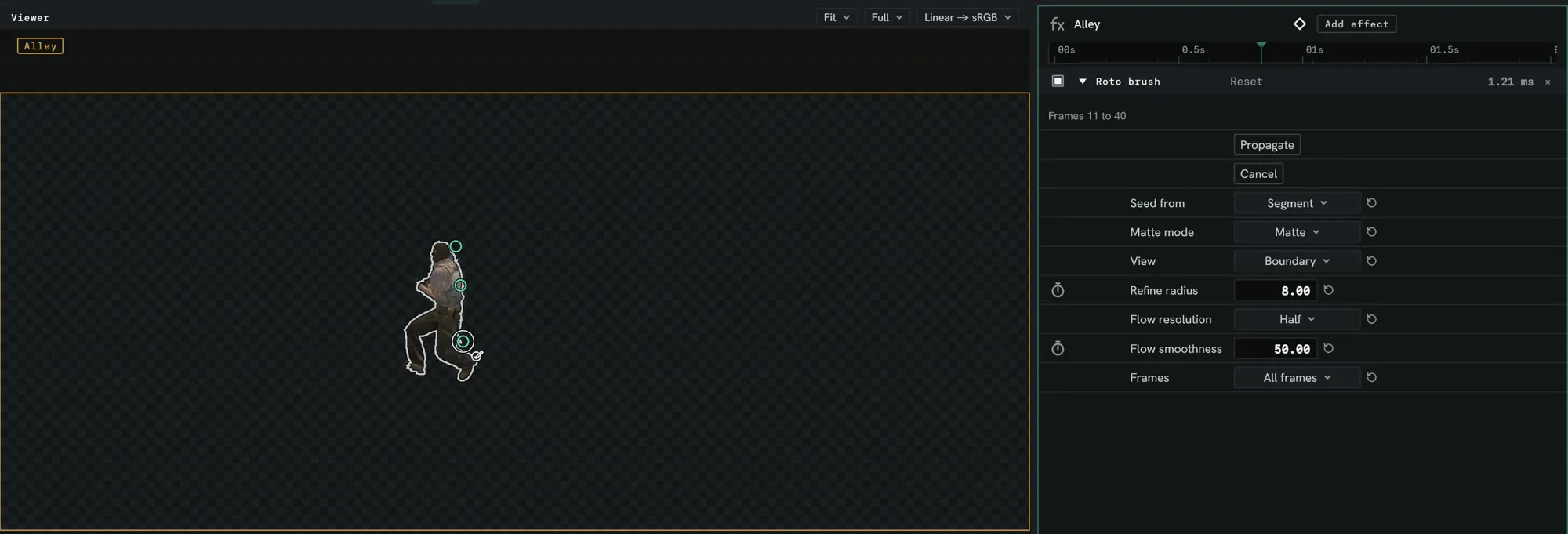
Without SAM 2.1, a propagation seeded by Segment is refused.
Licences
Section titled “Licences”Each pack keeps its own licence, named on its row. BiRefNet’s weights are trained on DIS5K, whose terms are non-commercial.