
Reference / Effects / Distortion
Updated
Displacement map
Displacement map is a Distortion effect.
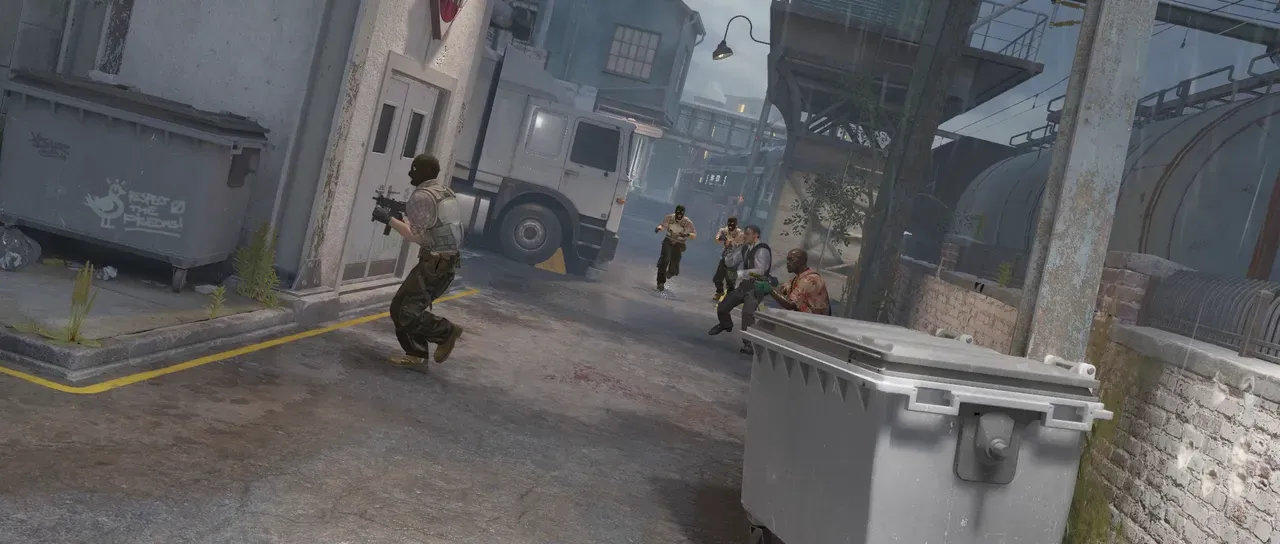
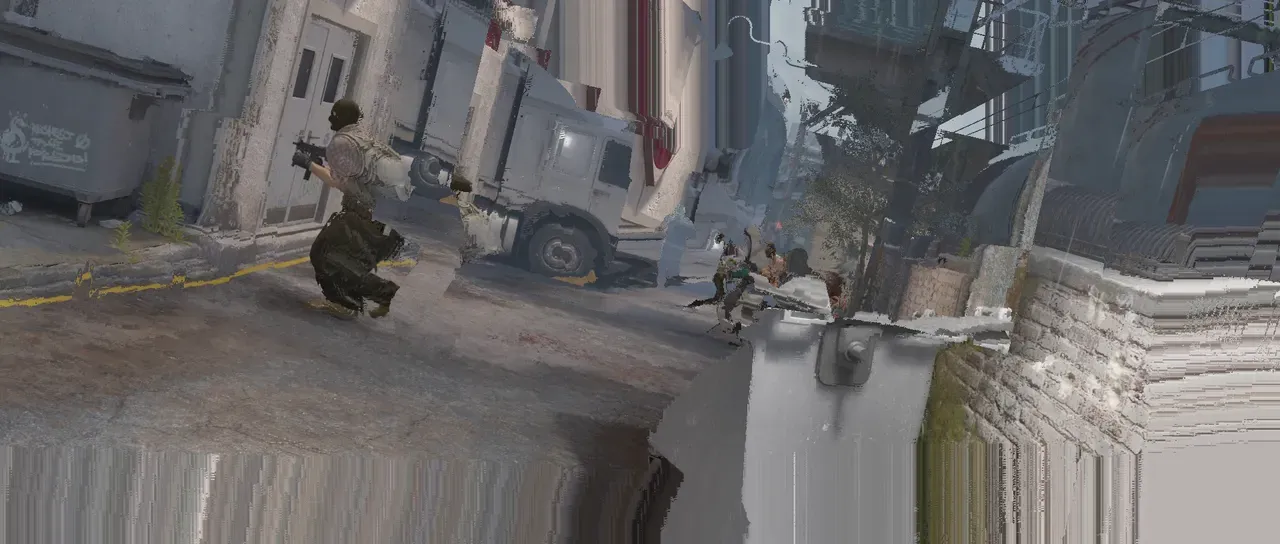
What it does
Section titled “What it does”Warping/displacement of one layer scaled with the contents of another.
Parameters
Section titled “Parameters”| Parameter | Control | Range | Default | Unit |
|---|---|---|---|---|
| Horizontal channel | Dropdown | Luminance · Alpha · Red · Green · Blue | Red | - |
| Horizontal amount | Slider | -500 to 500; any value by typing | 60 | Pixels at composition size |
| Vertical channel | Dropdown | Luminance · Alpha · Red · Green · Blue | Green | - |
| Vertical amount | Slider | -500 to 500; any value by typing | 60 | Pixels at composition size |
| Map placement | Dropdown | As placed in comp · Stretch to fit · Centre | As placed in comp | - |
| Edges | Dropdown | Transparent · Repeat · Mirror | Repeat | - |
| Mix | Slider | 0 to 100 | 100 | Per cent |
| Blend | Dropdown | Normal · Darken · Multiply · Colour burn · Linear burn · Darker colour · Add · Lighten · Screen · Colour dodge · Lighter colour · Overlay · Soft light · Hard light · Linear light · Vivid light · Pin light · Hard mix · Difference · Exclusion · Subtract · Divide · Hue · Saturation · Colour · Luminosity | Normal | - |
| Matte | Layer | Any layer in the composition | None | - |
| Invert | Checkbox | On or off | Off | - |
In the Effect Controls panel:
- Matte is the displacement map: the chosen channels of the matte layer say which way and how far each pixel is pushed, mid-grey meaning no push at all — the effect’s subject rather than a strength applied to one. Invert reads that matte inverted.
What each control does
Section titled “What each control does”- Matte is the map, and is required for the effect to change anything.
- Horizontal channel and Vertical channel choose the channel used to scale each direction.
- Map placement: where the map sits on this layer. As placed in comp reads it where the Matte layer sits in the composition. Stretch to fit stretches it over this layer. Centre centres it at its own size. Outside the map nothing moves. An effect saved before this row existed stays on Stretch to fit.
- Horizontal amount and Vertical amount adjust the scaling multiplier.
- Edges adjusts what resulting transparent pixels are filled with. Repeat smears the border pixel and keeps the frame full. Transparent fills with nothing. Mirror reflects the picture back.
- Mix: how much of the result replaces the original.
- Invert reads the map the other way round.