
Reference / Effects / Generate
Updated
Vary points
Vary points is a Generate effect.
What it does
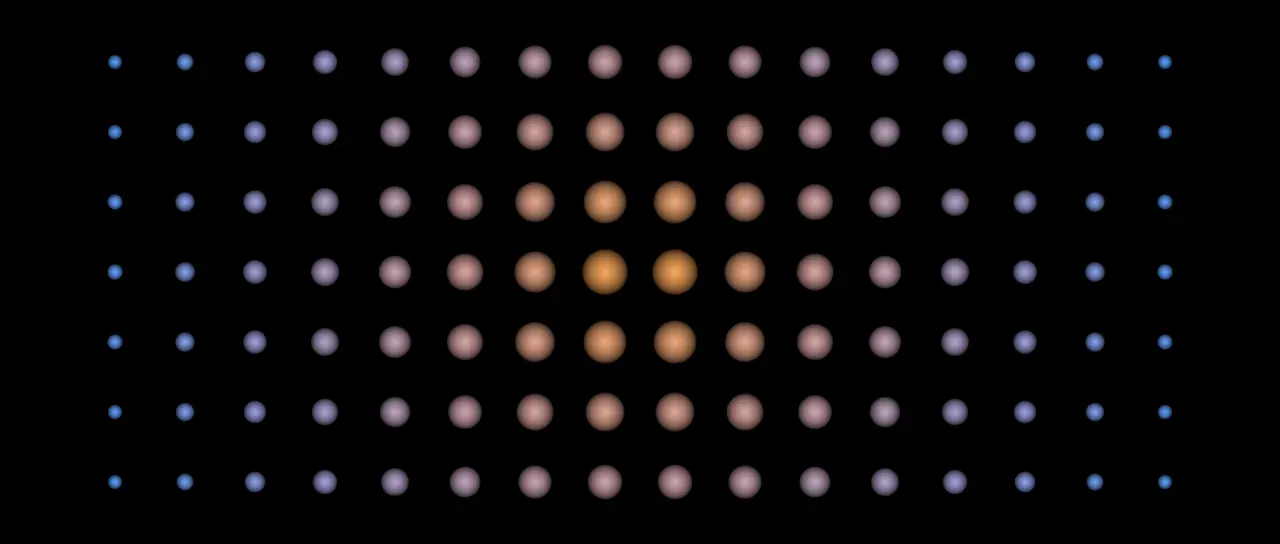
Section titled “What it does”Reads the stream on its Points socket and changes each point’s size, opacity, rotation, colour and position. A Pattern gives each point a number from 0 to 1, and that number sets how much of each change the point takes.
The changed points go out on its own Points socket and are drawn as discs. The producer above still draws its own unchanged points while its Mix is above nought.
Two Vary points in a row have a seed each. On Random, one on Offset x and one on Offset y scatter the points both ways.
Apply to changes only the picked points, and Set number writes the number each point carries. See Pick points for both.
Use colour ramp colours the points from three curves, Red, Green and Blue, in place of the three colours. The curves share one editor, with a tab each. Each runs along the pattern, from where it reads 0 at the left to where it reads 1 at the right, and its height is how much of that channel a point keeps. A curve holds up to 32 points.
With the Image pattern or Colour from image on, its points depend on a picture. The points effects below it in the same layer’s stack can read them. Points sample cannot, and neither can Layer points from another layer.
A point can carry more numbers than the one, each under a name. Set number writes one under its Name, a Pick points writes a group under its Group name, and some effects write names of their own, listed on their pages. Every row that takes a name reads one.
An empty name is the number the point carries, or for a group the points a Pick points picked. A name nothing has written reads nought.
What a name holds is one number, an offset of two, or a colour of four. Store says which when it is written. A row that reads a number reads an offset as its length, and a colour as the brightness of its red, green and blue. Where Merge points joins streams that hold one name as two of these, the name is dropped.
A name that starts with @ is read off the point itself and never stored. It can be typed
in any mix of capitals.
| Name | Reads |
|---|---|
@index | The point’s place in the stream, from 0. |
@indexnorm | Its place, from 0 at the first point to 1 at the last. |
@n | How many points the stream has. |
@id | Its id. |
@x, @y and @z | Where it is, in pixels at composition size. |
@size | Its size, in pixels at composition size. |
@age | Its age, in seconds. |
@rand01 | A roll of its own from 0 to 1, the same every frame. |
@picked | 1 for a picked point and 0 for the rest. |
A stream carries at most 64 names. One more is not written.
Parameters
Section titled “Parameters”| Parameter | Control | Range | Default | Unit |
|---|---|---|---|---|
| Apply to | Dropdown | All points · Picked · Not picked | All points | - |
| Group | Text | A short line of text | Empty | - |
| Threshold | Slider | 0 to 1; any value by typing | 0.5 | - |
| Pattern | Dropdown | Index · Random · Noise · Distance · Age · Constant · Across · Down · Image · Picked · Number · Stripes · Checker · Waves | Random | - |
| Curve | Curve | 2 to 32 points in the unit square | The identity diagonal | - |
| Noise scale | Slider | 10 to 1000; down to 1 and higher | 200 | Pixels at composition size |
| Noise speed | Slider | 0 to 5; higher | 0 | - |
| Centre X | Slider | 0 to 3840; any value by typing | 960 | Pixels at composition size |
| Centre Y | Slider | 0 to 2160; any value by typing | 540 | Pixels at composition size |
| Radius | Slider | 0 to 2000; higher | 400 | Pixels at composition size |
| Number range | Slider | 1 to 100; down to 0.001 and higher | 1 | - |
| Name | Text | A short line of text | Empty | - |
| Spacing | Slider | 1 to 1000; down to 0 and higher | 100 | Pixels at composition size |
| Angle | Dial | Any angle; snaps every 15° while a modifier is held | 0° | Degrees |
| Width | Slider | 0 to 100 | 50 | Per cent |
| Wave | Dropdown | Sine · Triangle · Square · Sawtooth | Sine | - |
| Rings | Checkbox | On or off | Off | - |
| Image layer | Layer | Any layer in the composition | None | - |
| Map placement | Dropdown | As placed in comp · Stretch to fit · Centre | As placed in comp | - |
| Colour from image | Checkbox | On or off | Off | - |
| Size | Slider | 0 to 400; higher | 100 | Per cent |
| Opacity | Slider | 0 to 100 | 100 | Per cent |
| Stretch x | Slider | 0 to 400; higher | 100 | Per cent |
| Stretch y | Slider | 0 to 400; higher | 100 | Per cent |
| Start colour | Colour | Each channel 0 to 4, scene-linear | 1, 1, 1, 1 | - |
| Use middle colour | Checkbox | On or off | Off | - |
| Middle colour | Colour | Each channel 0 to 4, scene-linear | 1, 1, 1, 1 | - |
| Colour | Colour | Each channel 0 to 4, scene-linear | 1, 1, 1, 1 | - |
| Both ways | Checkbox | On or off | Off | - |
| Rotation | Dial | Any angle; snaps every 15° while a modifier is held | 0° | Degrees |
| Offset x | Slider | -1000 to 1000; any value by typing | 0 | Pixels at composition size |
| Offset y | Slider | -1000 to 1000; any value by typing | 0 | Pixels at composition size |
| Offset z | Slider | -1000 to 1000; any value by typing | 0 | Pixels at composition size |
| Offset forward | Slider | -1000 to 1000; any value by typing | 0 | Pixels at composition size |
| Offset sideways | Slider | -1000 to 1000; any value by typing | 0 | Pixels at composition size |
| Use colour ramp | Checkbox | On or off | Off | - |
| Red | Curve | 2 to 32 points in the unit square | The identity diagonal | - |
| Green | Curve | 2 to 32 points in the unit square | The identity diagonal | - |
| Blue | Curve | 2 to 32 points in the unit square | The identity diagonal | - |
| Set number | Checkbox | On or off | Off | - |
| Number › Name | Text | A short line of text | Empty | - |
| Store | Dropdown | Number · Offset · Colour | Number | - |
| Number from | Slider | 0 to 100; any value by typing | 0 | - |
| Number to | Slider | 0 to 100; any value by typing | 1 | - |
| Feather | Slider | 0 to 100 | 100 | Per cent |
| Seed | Seed | Any whole number | A fresh random seed per instance | - |
| Mix | Slider | 0 to 100 | 100 | Per cent |
| Blend | Dropdown | Normal · Darken · Multiply · Colour burn · Linear burn · Darker colour · Add · Lighten · Screen · Colour dodge · Lighter colour · Overlay · Soft light · Hard light · Linear light · Vivid light · Pin light · Hard mix · Difference · Exclusion · Subtract · Divide · Hue · Saturation · Colour · Luminosity | Normal | - |
| Matte | Layer | Any layer in the composition | None | - |
| Invert | Checkbox | On or off | Off | - |
| Channel | Dropdown | Luminance · Alpha · Red · Green · Blue | Luminance | - |
In the Effect Controls panel:
- Pattern groups Pattern, Curve.
- Image groups Image layer, Map placement, Colour from image.
- Change groups Size, Opacity, Stretch x, Stretch y, Start colour, Use middle colour, Middle colour, Colour, Both ways, Rotation, Offset x, Offset y, Offset z, Offset forward, Offset sideways.
- Colour ramp groups Use colour ramp, Red, Green, Blue.
- Number groups Set number, Name, Store, Number from, Number to.
- Point groups Feather.
- Group is editable while Apply to is anything but All points.
- Threshold is editable while Apply to is anything but All points.
- Name is editable while Set number is on.
- Store is editable while Set number is on.
- Middle colour is editable while Use middle colour is on.
- Start colour is editable while Use colour ramp is off.
- Use middle colour is editable while Use colour ramp is off.
- Middle colour is editable while Use colour ramp is off.
- Colour is editable while Use colour ramp is off.
- Red is editable while Use colour ramp is on.
- Green is editable while Use colour ramp is on.
- Blue is editable while Use colour ramp is on.
- Number from is editable while Set number is on.
- Number to is editable while Set number is on.
- Matte is an input to an effect, scaling the strength. Invert inverts the mattes for calculating strength.
What each control does
Section titled “What each control does”- Apply to: which points are changed. The rest pass through as they came.
- Group: the group Picked and Not picked go by, as a name. Left empty, they go by the points a Pick points picked. See Names.
- Threshold: what a point’s Group must read above to be in it. It is read only with a Group named.
- Pattern: where a point’s number comes from. Index is its place in the stream, 0 for the first point and 1 for the last. Random is a roll of its own, the same every frame. Noise is a smooth noise read at its position. Distance is how far it is from the centre, reaching 1 at Radius. Age is how far through its life it is. The points of Particulate and Track points age, and the rest do not. Constant is always 1. Across runs from 0 at Radius left of the centre to 1 at Radius right of it, and Down does the same from top to bottom. Image is how bright the picture under the point is. Picked is 1 for a picked point and 0 for the rest. Number is the number the point carries over Number range, held to 0 to 1. Stripes is 1 inside a band and 0 between. Checker is 1 and 0 in alternate squares. Waves is a wave that repeats over space and can travel over time.
- Curve: reshapes the pattern’s number before the changes read it.
- Seed: which roll, or which noise. It shows for Random and Noise.
- Noise scale: how far apart two points must be to differ. It shows for Noise.
- Noise speed: how fast the noise changes over time, and how many waves pass a point each second. At nought they hold still. It shows for Noise and Waves.
- Centre X and Centre Y: the place Distance, Across and Down are measured from, and where the stripes, squares and waves start.
- Radius: how far from the centre the number reaches 1. It shows for Distance, Across and Down.
- Number range: the number that reads as 1. A point’s number is divided by it, and with word numbers 0 to 4 a range of 4 spreads the words from 0 to 1. It shows for Number.
- Name, under Number range: which of a point’s numbers the Number pattern reads. Left empty, it is the number the point carries. It shows for Number.
- Spacing: how far it is from one stripe, square or wave to the next. It shows for Stripes, Checker and Waves.
- Angle: how far the stripes and squares are turned about the centre, and the way the waves travel. At 0 the stripes lie across and the waves travel to the right. Rings take no notice of it.
- Width: how much of each Spacing a stripe fills. It shows for Stripes.
- Wave: the shape of each wave. It shows for Waves.
- Rings: the waves run out from the centre as rings, not across as bands.
- Image layer: the layer whose picture the Image pattern and Colour from image read. Unset reads this effect’s own input picture.
- Map placement: where the Image layer’s picture sits on this layer. As placed in comp reads it where that layer sits in the composition. Stretch to fit stretches it over this layer. Centre centres it at its own size. An effect saved before this row existed stays on Stretch to fit.
- Colour from image: the point takes the colour of the picture under it. Its own alpha still multiplies it.
- Size: the size a point takes where the pattern reads 1, as a per cent of its own.
- Opacity: the opacity a point takes where the pattern reads 1, as a per cent of its own.
- Stretch x and Stretch y: how far a point is stretched across and down where the pattern reads 1, in its own turned frame.
- Start colour: multiplies the point’s colour where the pattern reads 0.
- Use middle colour: runs the colours from Start colour through Middle colour to Colour.
- Middle colour: multiplies the point’s colour where the pattern reads a half.
- Colour: multiplies the point’s colour where the pattern reads 1.
- Both ways: Rotation and the Offsets read the pattern as -1 to 1 in place of 0 to 1. A Random or Noise pattern rolls again for each Offset.
- Rotation: the turn added where the pattern reads 1.
- Offset x, Offset y and Offset z: how far the point is moved where the pattern reads 1.
- Offset forward and Offset sideways: how far the point is moved along the way it faces, and at right angles to it, where the pattern reads 1. The way it faces is its rotation, with Rotation above added.
- Use colour ramp: colours the points from the three curves below it. Start colour, Middle colour and Colour are then not read.
- Red, Green and Blue: how much of each channel a point keeps along the pattern. Each starts as a flat line at the top, which changes nothing. A point at the bottom removes that channel there.
- Set number: writes the number each point carries.
- Name, under Set number: the name the number is written under. Left empty, it is the number the point carries.
- Store: what is written under the Name. Number is the number the two rows below give. Offset is how far this effect moved the point across and down, in pixels at composition size. Colour is the point’s colour as this effect leaves it, which with Colour from image is the picture’s colour under it. With no Name it is always the number.
- Number from and Number to: the number a point gets where the pattern reads 0, and where it reads 1.
- Feather: how soft the edge of a drawn disc is.
- Mix: how much of the drawing lands on the picture. At nought the points are still handed on.
- Matte and Invert drive the strength of the effect from another layer’s brightness. See Effects.