
Reference / Effects / Generate
Updated
Track points
Track points is a Generate effect.
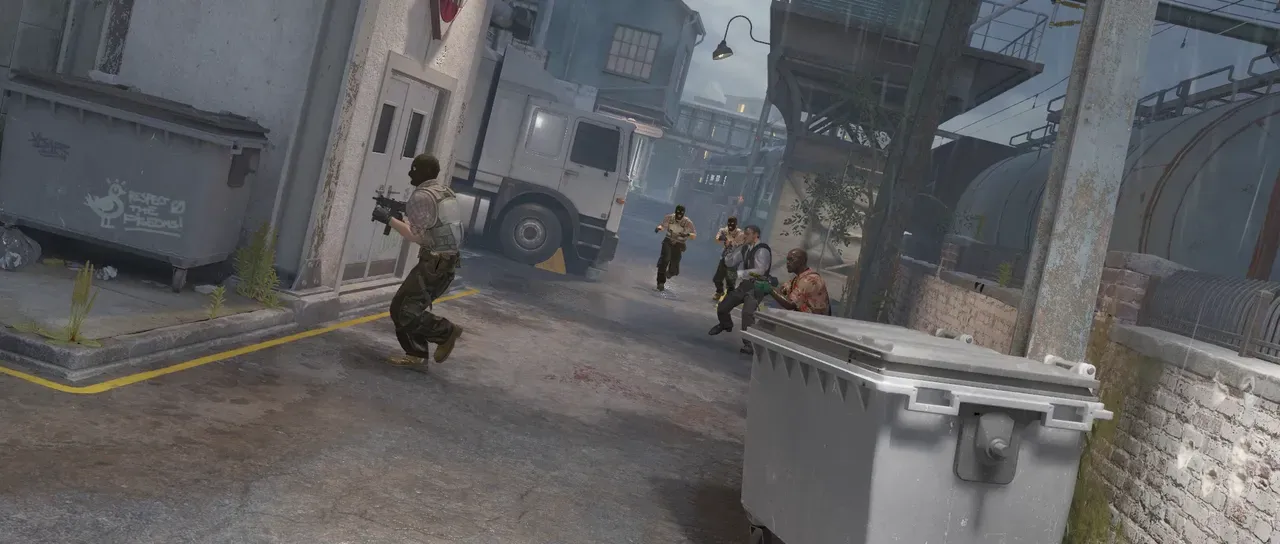
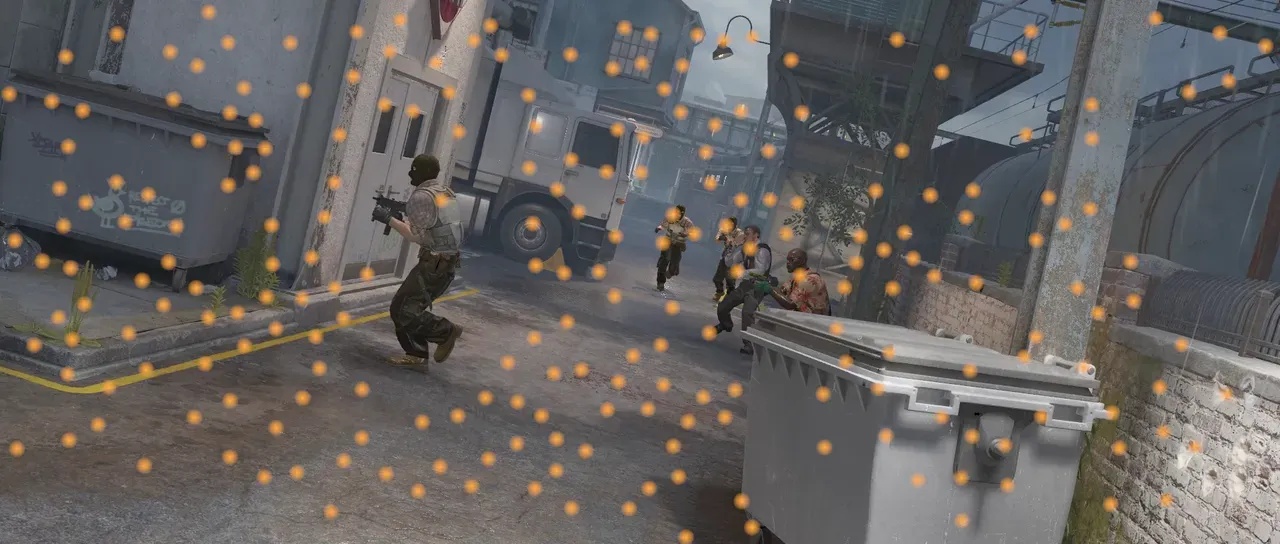
What it does
Section titled “What it does”Follows things in a Footage or Precomp layer’s picture and hands them out as points, drawn as discs. Features follows corners, with the tracker Camera track uses. Blobs follows bright or dark regions by their centres.
Press Analyse and the footage is read once. Until then the effect makes no points and draws nothing. After a change to a row the mode reads, or to the footage, it makes none until it is analysed again.
The analysis is kept in Lumit’s cache on this machine and not in the project file. On another machine it has to be run again.
Every point keeps one identity for as long as it is followed, and a Trail or a Clone to points below stays attached to it. On a retimed layer the points stay on the picture.
A feature’s number is the tracker’s confidence in it, from 0 to 1, and it carries the same
under the name confidence. A blob carries its area under area, in pixels of the
footage. See Names.
Any points effect can read these points, and so can Points sample and Layer points.
Parameters
Section titled “Parameters”| Parameter | Control | Range | Default | Unit |
|---|---|---|---|---|
| Mode | Dropdown | Features · Blobs | Features | - |
| Feature density | Dropdown | Low · Normal · High | Normal | - |
| Quality | Slider | 0 to 20; up to 100 | 1 | Per cent |
| Spacing | Slider | 1 to 100; down to 0 and higher | 6 | Pixels at composition size |
| Window | Slider | 5 to 51; up to 63 | 15 | Pixels at composition size |
| Threshold | Slider | 0 to 100 | 50 | Per cent |
| Invert | Checkbox | On or off | Off | - |
| Min area | Slider, whole numbers | 0 to 10000; higher | 16 | - |
| Max area | Slider, whole numbers | 0 to 1000000; higher | 1000000 | - |
| Max distance | Slider | 0 to 500; higher | 50 | Pixels at composition size |
| Analyse | Button | - | - | - |
| Cancel | Button | - | - | - |
| Size | Slider | 0 to 200; higher | 8 | Pixels at composition size |
| Feather | Slider | 0 to 100 | 100 | Per cent |
| Colour | Colour | Each channel 0 to 4, scene-linear | 1, 1, 1, 1 | - |
| Mix | Slider | 0 to 100 | 100 | Per cent |
| Blend | Dropdown | Normal · Darken · Multiply · Colour burn · Linear burn · Darker colour · Add · Lighten · Screen · Colour dodge · Lighter colour · Overlay · Soft light · Hard light · Linear light · Vivid light · Pin light · Hard mix · Difference · Exclusion · Subtract · Divide · Hue · Saturation · Colour · Luminosity | Normal | - |
| Matte | Layer | Any layer in the composition | None | - |
| Invert | Checkbox | On or off | Off | - |
| Channel | Dropdown | Luminance · Alpha · Red · Green · Blue | Luminance | - |
In the Effect Controls panel:
- Point groups Size, Feather, Colour.
- Matte is an input to an effect, scaling the strength. Invert inverts the mattes for calculating strength.
What each control does
Section titled “What each control does”- Mode: what is followed. Features is corners in the picture. Blobs is whole bright regions.
- Feature density: how many features are followed. It shows for Features, as do the next three.
- Quality: how distinct a corner has to be, as a share of the frame’s best one. Lower follows more and weaker points.
- Spacing: the least distance between two features, in the footage’s own pixels.
- Window: how wide the patch followed round each feature is, in the footage’s own pixels. Bigger holds on better and is less exact on small detail.
- Threshold: how bright a pixel has to be to count as part of a blob, as a per cent of full white. It shows for Blobs, as do the next four.
- Invert, below Threshold: follows dark blobs on a light picture instead.
- Min area: the smallest blob kept, in pixels of the footage.
- Max area: the largest blob kept, in pixels of the footage.
- Max distance: how far a blob may move between two frames and still be the same blob, in the footage’s own pixels.
- Analyse: start tracking.
- Cancel: stop a track that is running.
- Size: the diameter of the disc a point is drawn as. A blob is drawn at its own size instead.
- Feather: how soft that disc’s edge is.
- Colour: what the discs are drawn in.
- Mix: how much of the drawing lands on the picture. At nought the points are still emitted on the socket.
- Matte and its Invert drive the strength of the effect from another layer’s brightness. See Effects.