
Reference / Effects / Blur & sharpen
Updated
Vector blur
Vector blur is a Blur & sharpen effect.
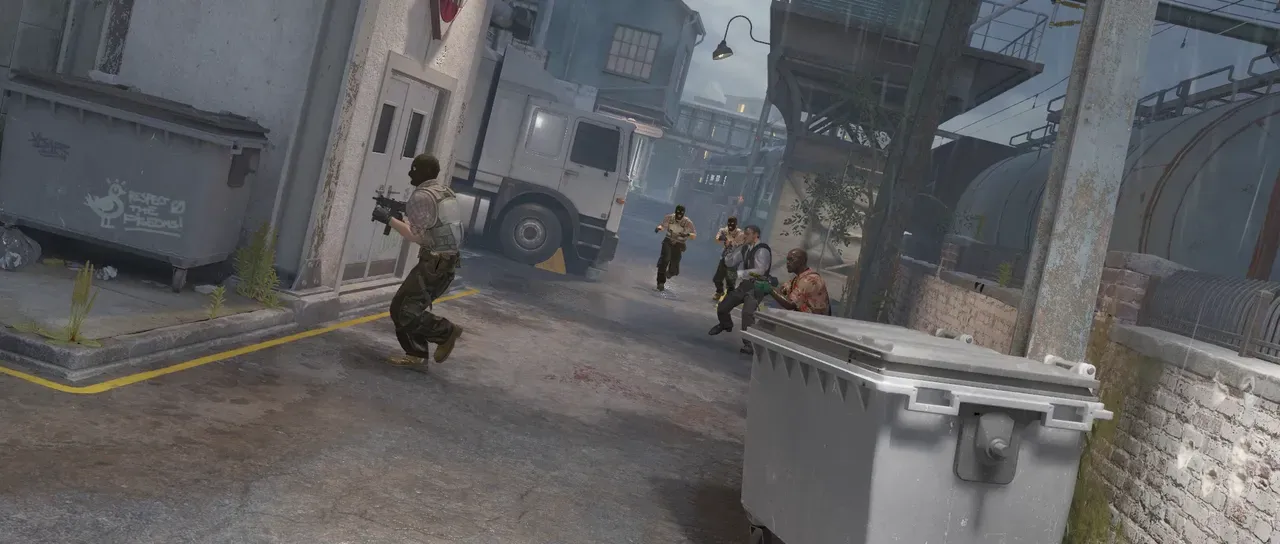
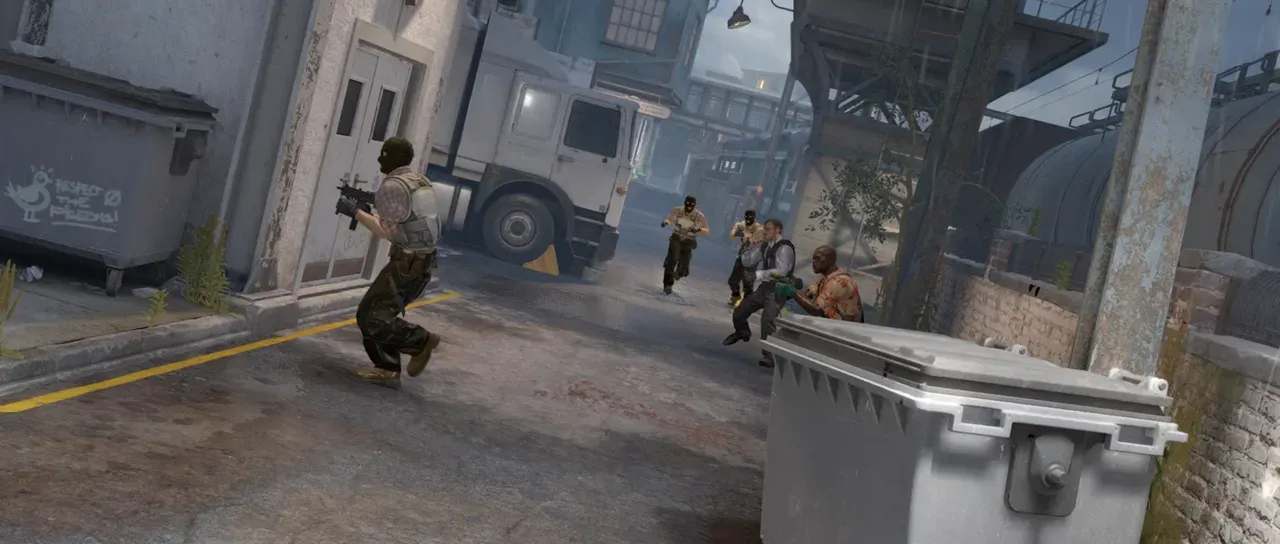
What it does
Section titled “What it does”A blur that streaks each pixel along a direction read from a map. The map is the Matte layer, or this layer’s own picture when Matte is unset.
Parameters
Section titled “Parameters”| Parameter | Control | Range | Default | Unit |
|---|---|---|---|---|
| Vectors from | Dropdown | Map slope · Map channels | Map slope | - |
| Slope channel | Dropdown | Luminance · Alpha · Red · Green · Blue | Luminance | - |
| Horizontal channel | Dropdown | Luminance · Alpha · Red · Green · Blue | Red | - |
| Vertical channel | Dropdown | Luminance · Alpha · Red · Green · Blue | Green | - |
| Length | Slider | 0 to 500; higher | 40 | Pixels at composition size |
| Angle offset | Slider | -180 to 180; down to -3600 and up to 3600 | 0 | Degrees |
| Constant length | Checkbox | On or off | Off | - |
| Follow the vectors | Checkbox | On or off | On | - |
| Direction | Dropdown | Both ways · Forwards · Backwards | Both ways | - |
| Falloff | Slider | 0 to 100 | 0 | Per cent |
| Map softness | Slider | 0 to 100; higher | 0 | Pixels at composition size |
| Map placement | Dropdown | As placed in comp · Stretch to fit · Centre | As placed in comp | - |
| Edges | Dropdown | Transparent · Repeat · Mirror | Repeat | - |
| Mix | Slider | 0 to 100 | 100 | Per cent |
| Blend | Dropdown | Normal · Darken · Multiply · Colour burn · Linear burn · Darker colour · Add · Lighten · Screen · Colour dodge · Lighter colour · Overlay · Soft light · Hard light · Linear light · Vivid light · Pin light · Hard mix · Difference · Exclusion · Subtract · Divide · Hue · Saturation · Colour · Luminosity | Normal | - |
| Matte | Layer | Any layer in the composition | None | - |
| Invert | Checkbox | On or off | Off | - |
In the Effect Controls panel:
- Slope channel is editable while Vectors from is set to Map slope.
- Horizontal channel is editable while Vectors from is set to Map channels.
- Vertical channel is editable while Vectors from is set to Map channels.
- Map placement is editable while Matte names a layer.
- Matte is the vector map: its slope or its channels say which way each pixel streaks and how far, and with none picked the layer’s own picture is used. Invert reads that matte inverted.
What each control does
Section titled “What each control does”- Vectors from: Map slope streaks along the contours of one channel of the map, longest where it changes fastest. Map channels reads two channels as a push on each axis, with mid-grey still.
- Slope channel: the channel whose contours the streaks follow.
- Horizontal channel and Vertical channel: the channels that push sideways and up and down.
- Length is the longest streak.
- Angle offset turns every streak. 90° streaks across the contours instead of along them.
- Constant length gives every streak the full Length.
- Follow the vectors bends each streak along the map. Off keeps it straight.
- Direction: Both ways centres the streak on its pixel. Forwards trails it along the vectors, Backwards against them.
- Falloff fades the streak towards its end.
- Map softness blurs the map before its vectors are read.
- Map placement: where the map sits on this layer. As placed in comp reads it where the Matte layer sits in the composition. Stretch to fit stretches it over this layer. Centre centres it at its own size.
- Edges: what a streak reads past the frame.
- Mix: how much of the result replaces the original.
- Invert reads the map the other way round.