
Reference / Effects / Transition
Updated
Iris wipe
Iris wipe is a Transition effect.
What it does
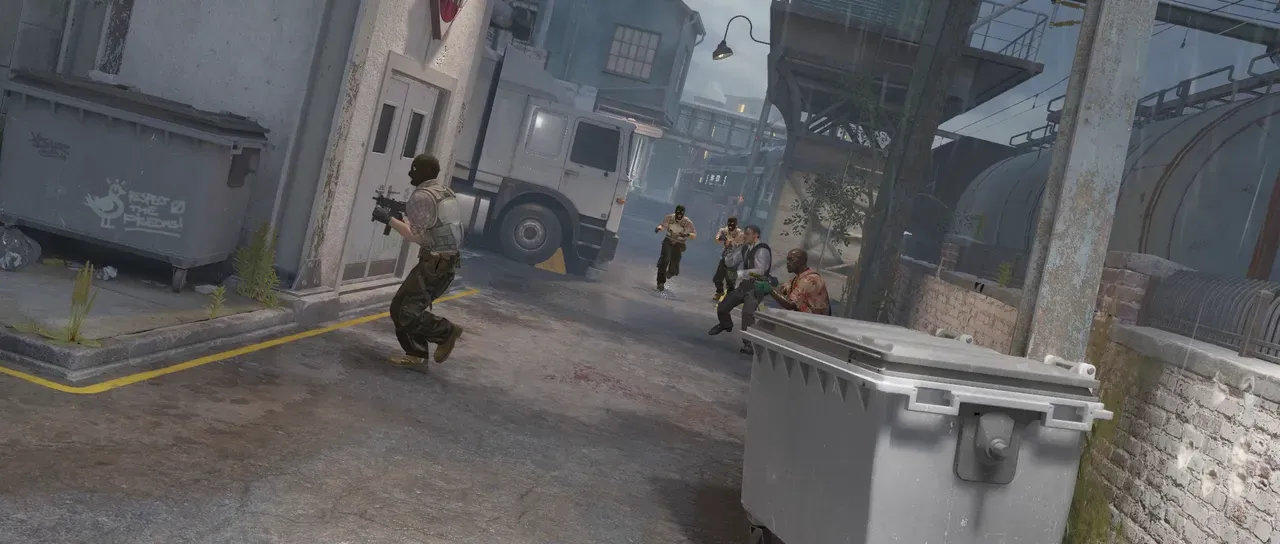
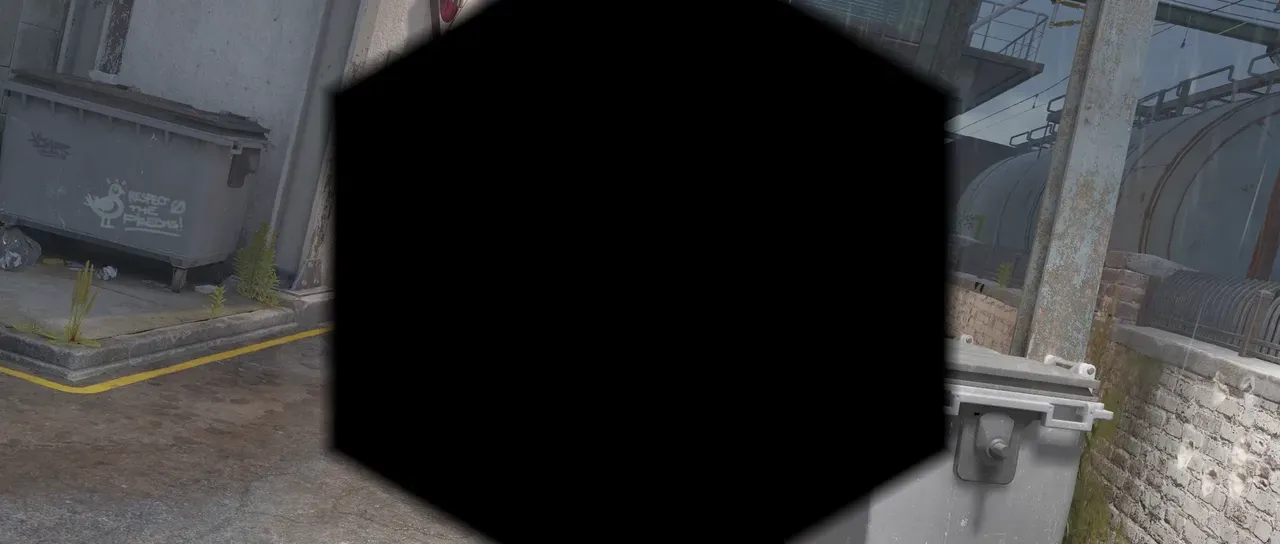
Section titled “What it does”Opens a hole in the layer, which expands until it wipes the entire frame.
Parameters
Section titled “Parameters”| Parameter | Control | Range | Default | Unit |
|---|---|---|---|---|
| Iris centre x | Slider | 0 to 3840; any value by typing | 960 | Pixels at composition size |
| Iris centre y | Slider | 0 to 2160; any value by typing | 540 | Pixels at composition size |
| Iris points | Slider, whole numbers | 6 to 32 | 6 | - |
| Outer radius | Slider | 0 to 2000; higher | 330 | Pixels at composition size |
| Use inner radius | Checkbox | On or off | Off | - |
| Inner radius | Slider | 0 to 2000; higher | 165 | Pixels at composition size |
| Rotation | Dial | Any angle; snaps every 15° while a modifier is held | 0° | Degrees |
| Feather | Slider | 0 to 500; higher | 0 | Pixels at composition size |
| Mix | Slider | 0 to 100 | 100 | Per cent |
| Blend | Dropdown | Normal · Darken · Multiply · Colour burn · Linear burn · Darker colour · Add · Lighten · Screen · Colour dodge · Lighter colour · Overlay · Soft light · Hard light · Linear light · Vivid light · Pin light · Hard mix · Difference · Exclusion · Subtract · Divide · Hue · Saturation · Colour · Luminosity | Normal | - |
| Matte | Layer | Any layer in the composition | None | - |
| Invert | Checkbox | On or off | Off | - |
| Channel | Dropdown | Luminance · Alpha · Red · Green · Blue | Luminance | - |
In the Effect Controls panel:
- Inner radius is editable while Use inner radius is on.
- Matte scales the iris radius per pixel: the polygon opens wide where the matte is bright and shuts to nothing where it is black, this effect having no Completion to scale. Invert reads that matte inverted.
What each control does
Section titled “What each control does”- Iris centre x and Iris centre y select the centre position of the wipe.
- Iris points sets how many corners the polygon has.
- Outer radius sets how far the corners reach.
- Use inner radius turns the polygon into a star by pulling every other corner in to Inner radius.
- Inner radius sets how far the pulled-in corners sit.
- Rotation turns the shape.
- Feather softens the edge.
- Mix: how much of the result replaces the original.
- Matte and Invert drive the strength of the effect from another layer’s brightness; see Effects.