
Reference / Effects / Generate
Updated
Beam
Beam is a Generate effect.
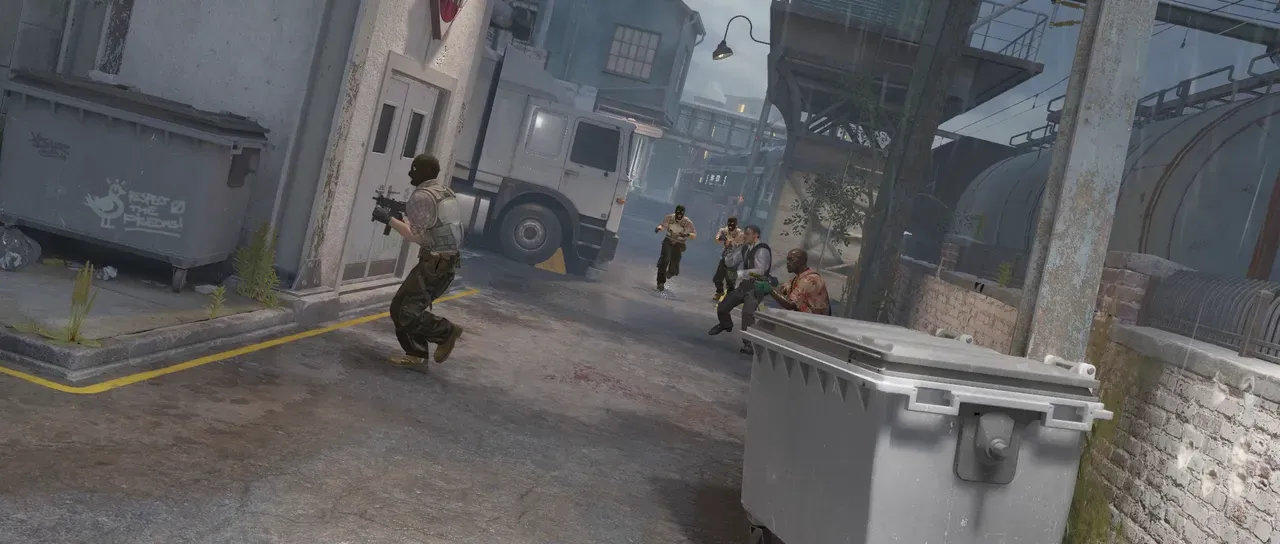
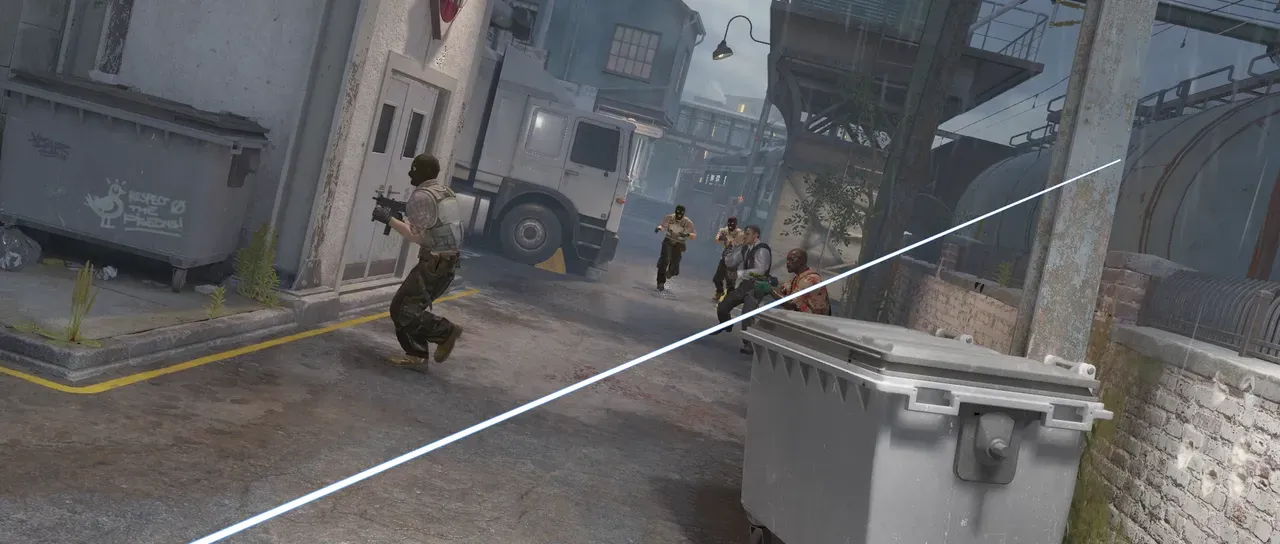
What it does
Section titled “What it does”Draws a shaft of light across the frame, created between two points and given a taper.
Parameters
Section titled “Parameters”| Parameter | Control | Range | Default | Unit |
|---|---|---|---|---|
| Start x | Slider | 0 to 3840; any value by typing | 240 | Pixels at composition size |
| Start y | Slider | 0 to 2160; any value by typing | 840 | Pixels at composition size |
| End x | Slider | 0 to 3840; any value by typing | 1680 | Pixels at composition size |
| End y | Slider | 0 to 2160; any value by typing | 240 | Pixels at composition size |
| Length | Slider | 0 to 4000; higher | 1560 | Pixels at composition size |
| Time | Slider | 0 to 100 | 100 | Per cent |
| Start thickness | Slider | 0 to 200; higher | 14 | Pixels at composition size |
| End thickness | Slider | 0 to 200; higher | 3 | Pixels at composition size |
| Softness | Slider | 0 to 100 | 30 | Per cent |
| Inside colour | Colour | Each channel 0 to 4, scene-linear | 1, 1, 1, 1 | - |
| Outside colour | Colour | Each channel 0 to 4, scene-linear | 0.1, 0.35, 1, 1 | - |
| Composite on original | Checkbox | On or off | On | - |
| Mix | Slider | 0 to 100 | 100 | Per cent |
| Blend | Dropdown | Normal · Darken · Multiply · Colour burn · Linear burn · Darker colour · Add · Lighten · Screen · Colour dodge · Lighter colour · Overlay · Soft light · Hard light · Linear light · Vivid light · Pin light · Hard mix · Difference · Exclusion · Subtract · Divide · Hue · Saturation · Colour · Luminosity | Normal | - |
| Matte | Layer | Any layer in the composition | None | - |
| Invert | Checkbox | On or off | Off | - |
| Channel | Dropdown | Luminance · Alpha · Red · Green · Blue | Luminance | - |
In the Effect Controls panel:
- Matte is an input to an effect, scaling the strength. Invert inverts the mattes for calculating strength.
What each control does
Section titled “What each control does”- Start x and Start y: the start position of the beam.
- End x and End y: the end position of the beam.
- Length: how long the drawn shaft is, in pixels.
- Time: where the beam’s head has reached along the length.
- Start thickness: how wide the beam is at its base.
- End thickness: how wide it is at the head.
- Softness: how much of the beam’s half-width the core and rim colours blend.
- Inside colour: the core colour.
- Outside colour: the rim colour.
- Composite on original: when enabled, the layer Beam is applied to appears underneath.
- Mix: how much of the result replaces the original.
- Matte and Invert drive the strength of the effect from another layer’s brightness; see Effects.